> For the complete documentation index, see [llms.txt](https://docs.wemix.fi/llms.txt). Markdown versions of documentation pages are available by appending `.md` to page URLs; this page is available as [Markdown](https://docs.wemix.fi/guides/pool/manage-position.md).
# Manage Position
After depositing liquidity, positions can be monitored and managed through WEMIX.Fi's Portfolio and Pool interfaces. This guide covers how to view position details and manage accumulated rewards.
{% hint style="info" %}
#### Prerequisites
Required items for managing positions:
* Web3 wallet (WemixPLAY, MetaMask) set up for WEMIX3.0 network
* Active liquidity position in a pool
* Native WEMIX to pay network transaction fees
{% endhint %}
***
{% stepper %}
{% step %}
## Accessing Positions
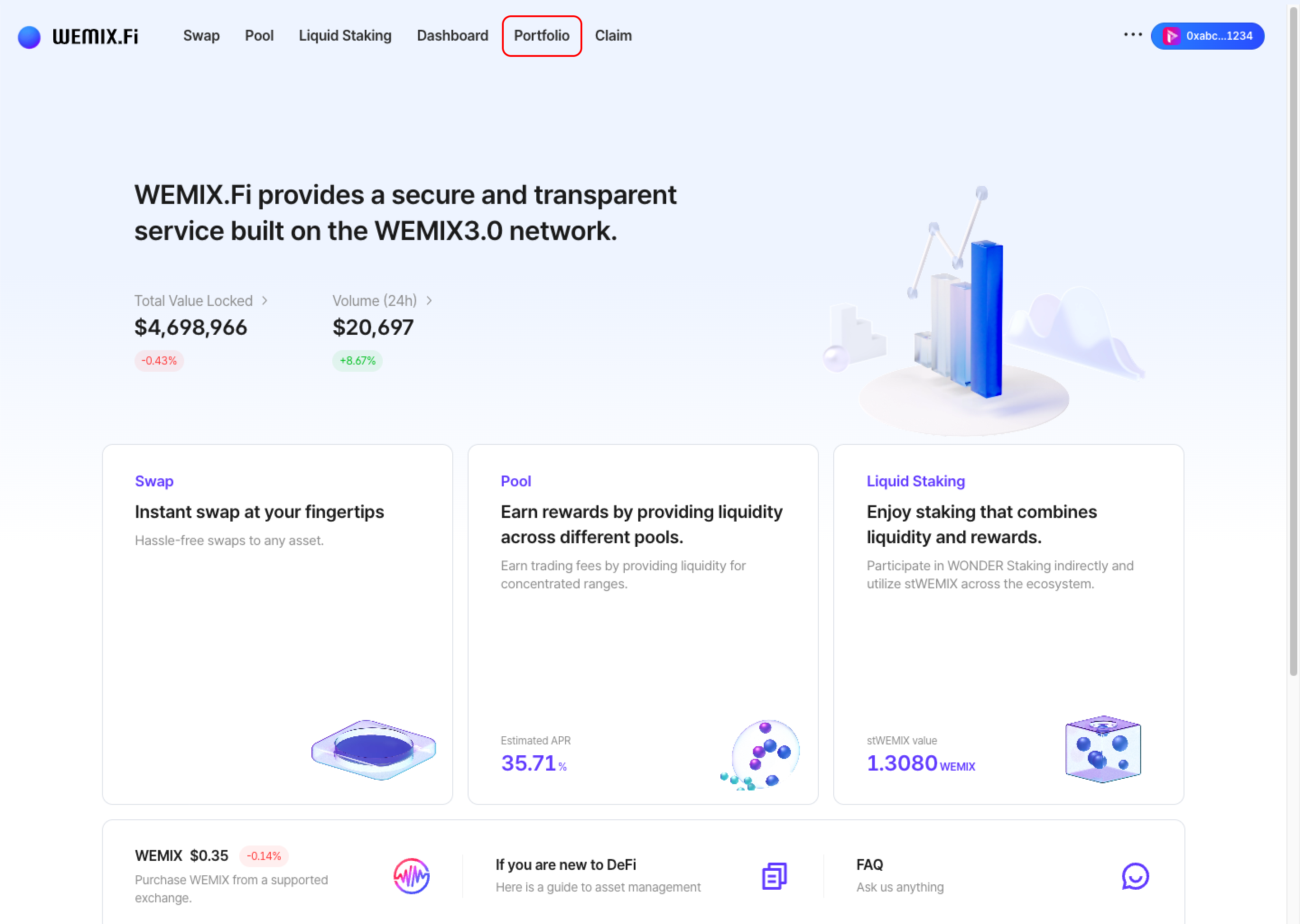
* Connect a wallet to WEMIX.Fi and navigate to the Portfolio page.
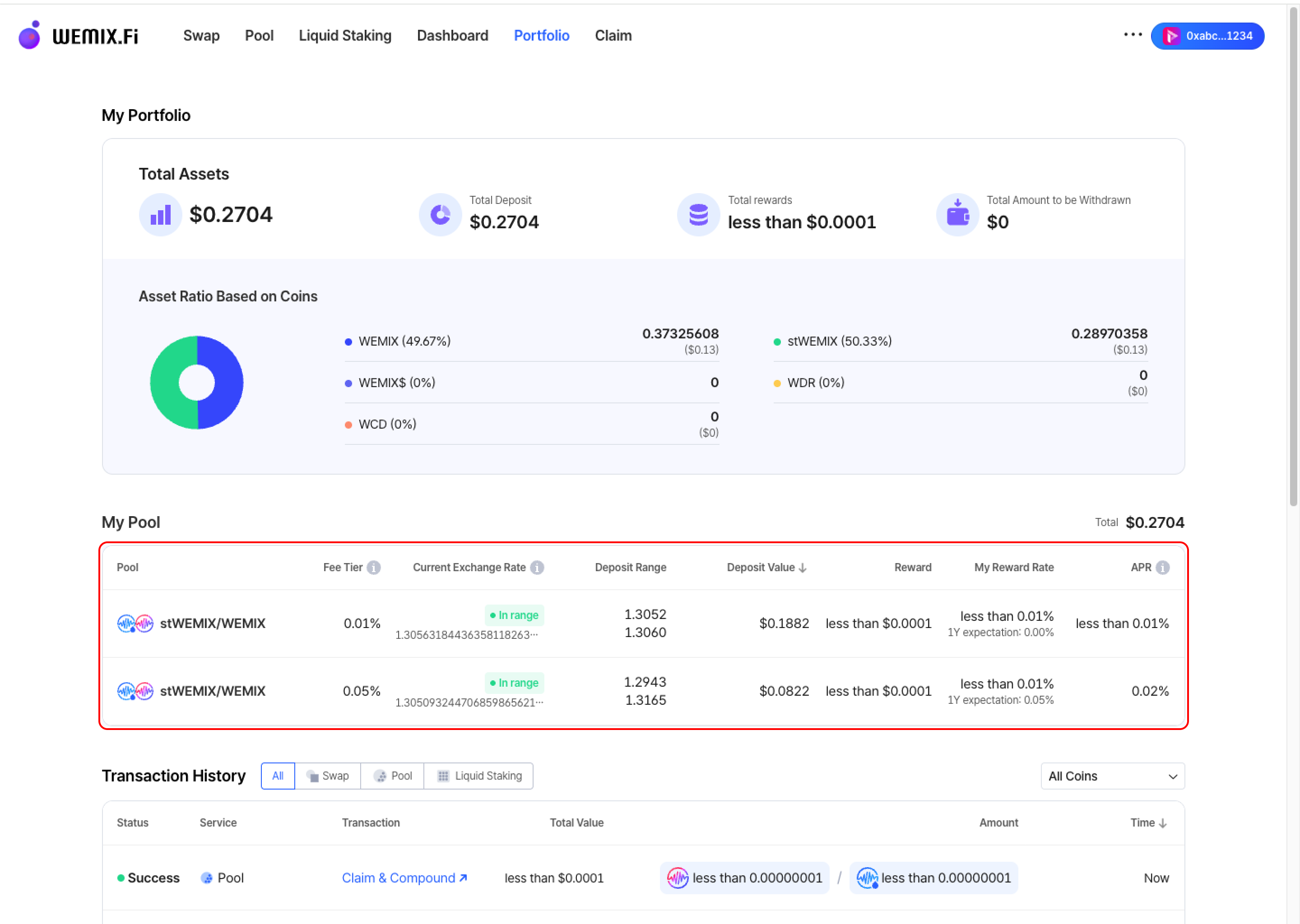
* The My Portfolio overview displays all active positions in the My Pool section. Select a position to view detailed information and management options.
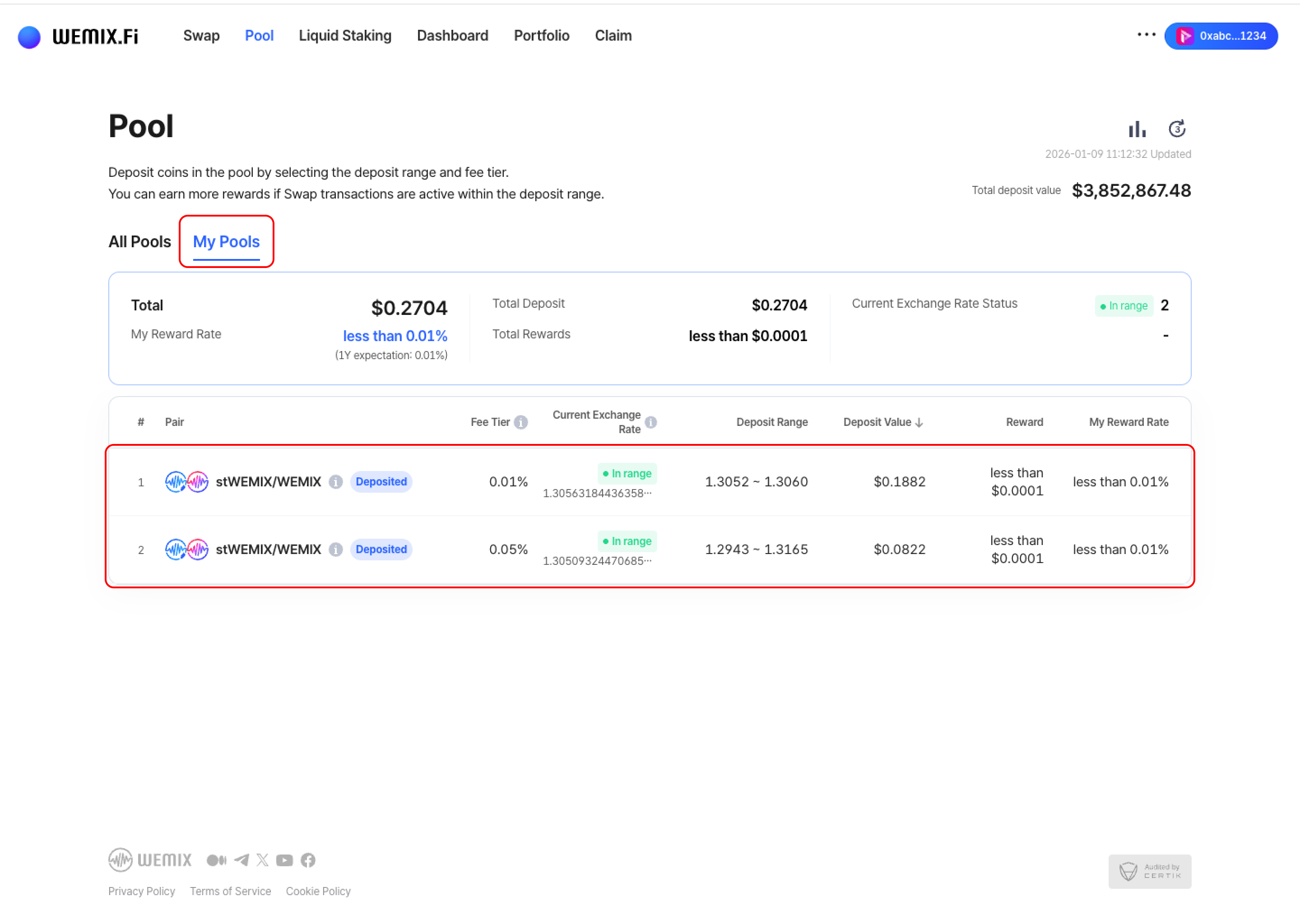
* Positions can also be accessed directly through the Pool page's 'My Pools' list.
{% endstep %}
{% step %}
## Viewing Position Details
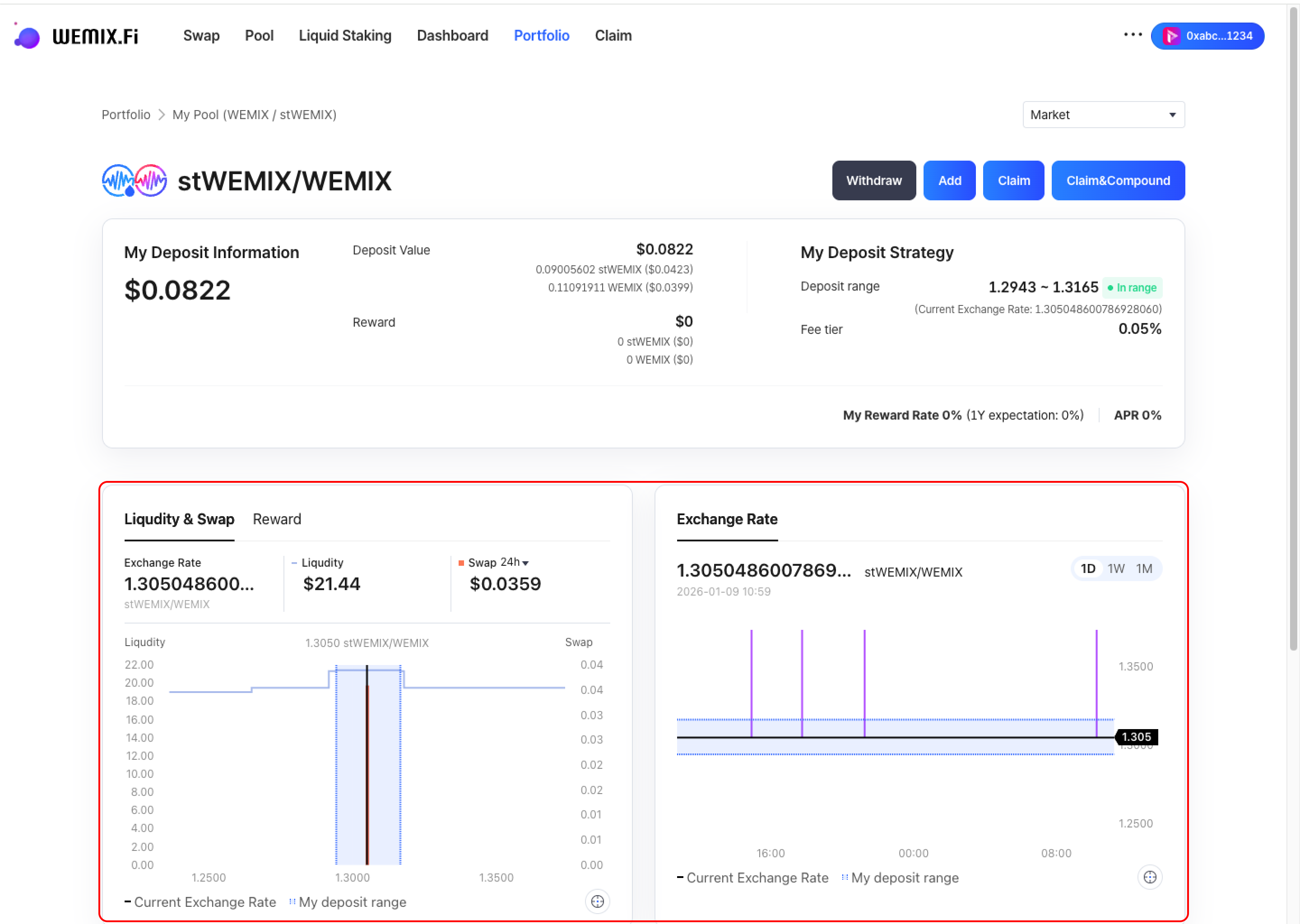
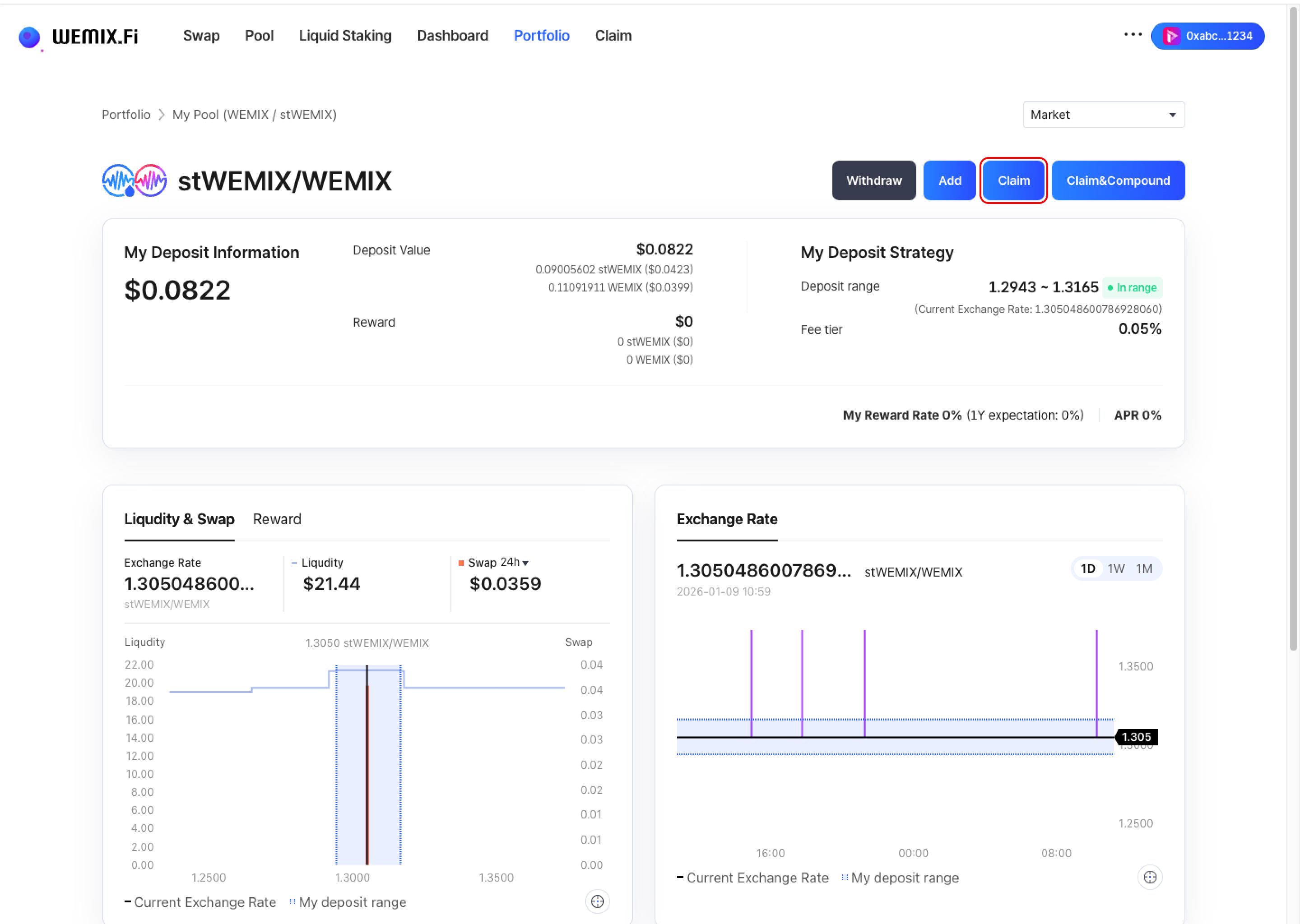
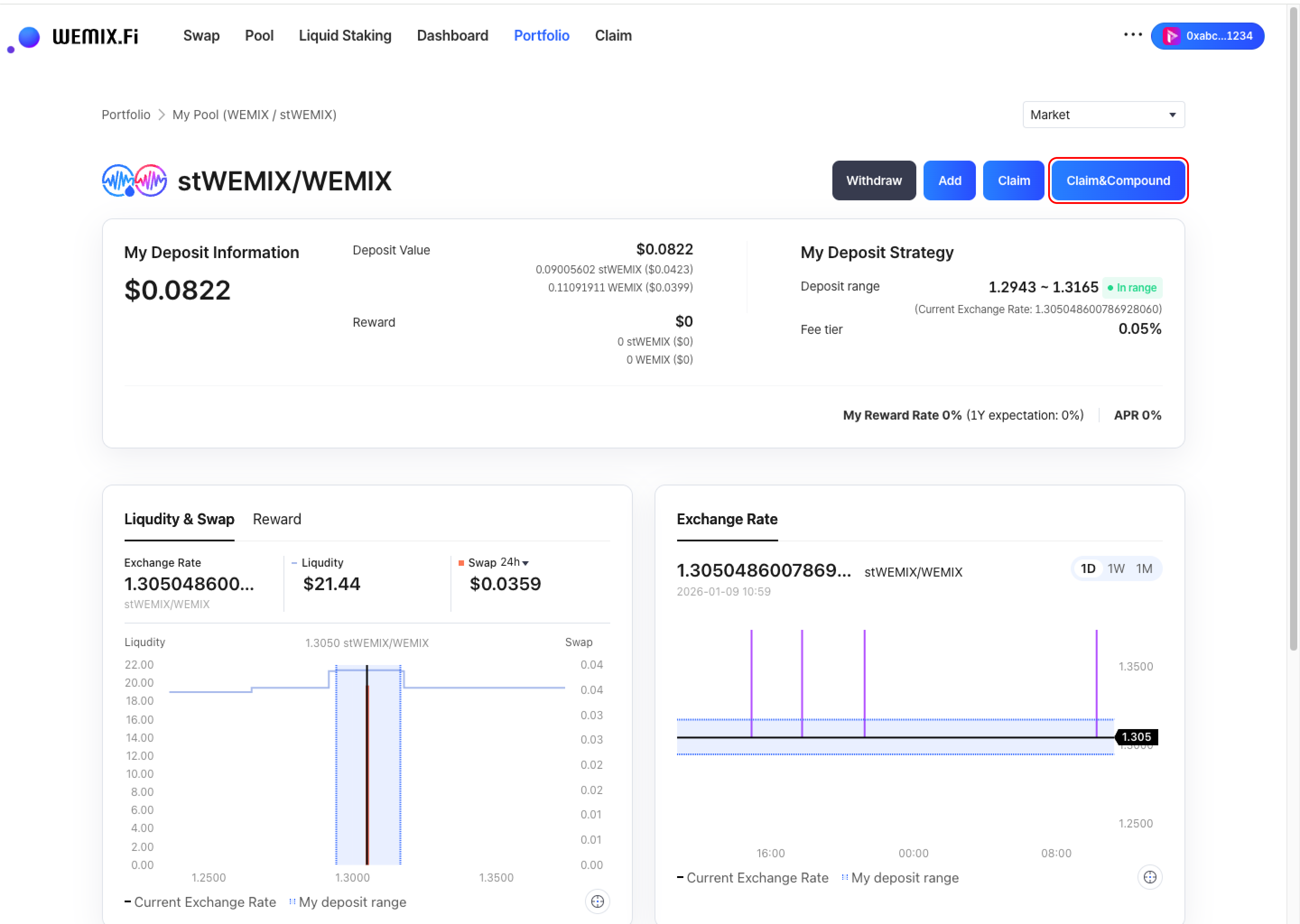
* The position detail page displays comprehensive information:
* **Exchange Rate**: Current price ratio of the token pair
* **Liquidity Depth**: Total liquidity in the selected range
* **Swap Volume**: Trading activity within the position's range
* **Reward**: Accumulated fees earned from swaps
* **Exchange Rate Change**: Price movement over 1 day, 1 week, and 1 month periods
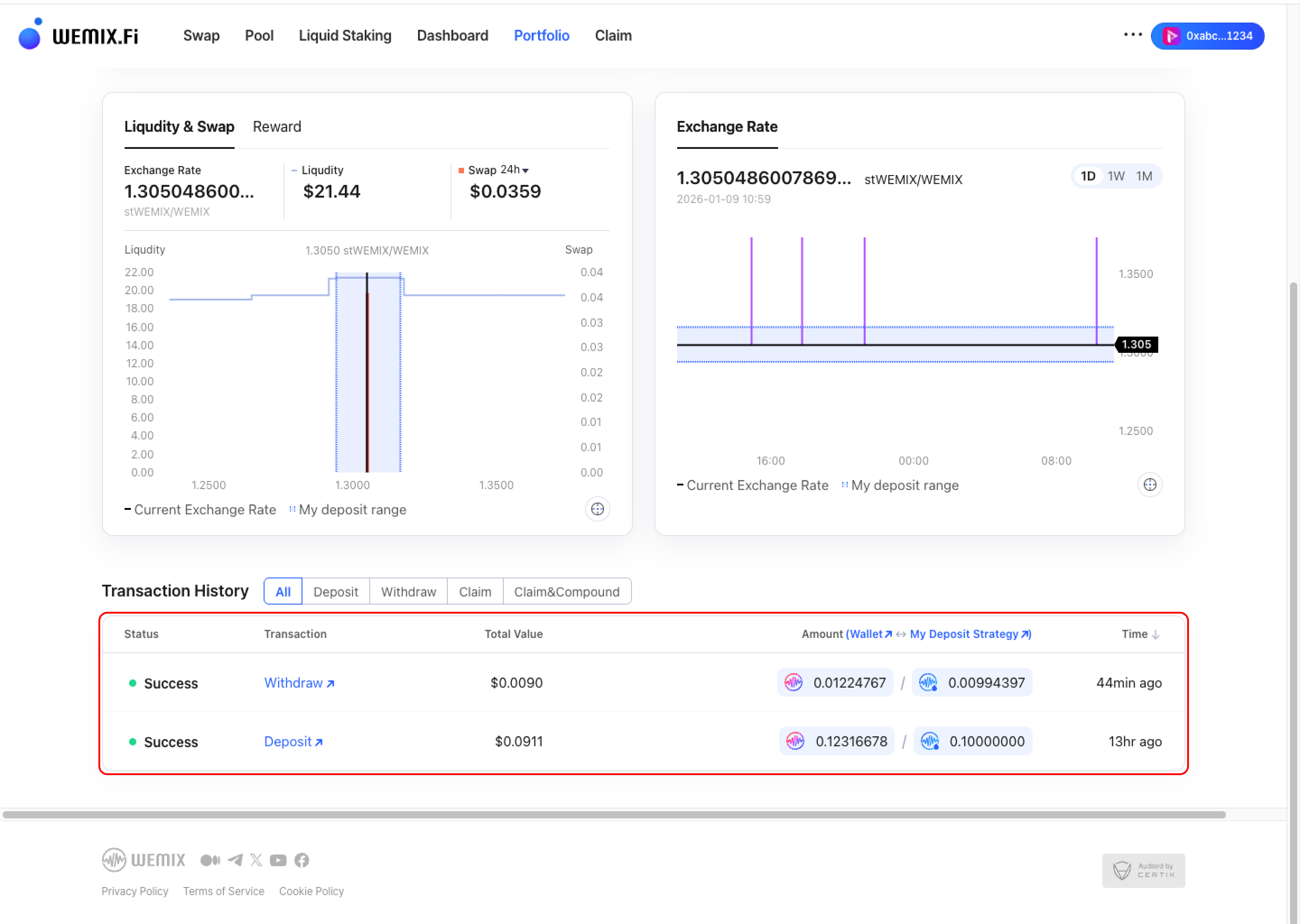
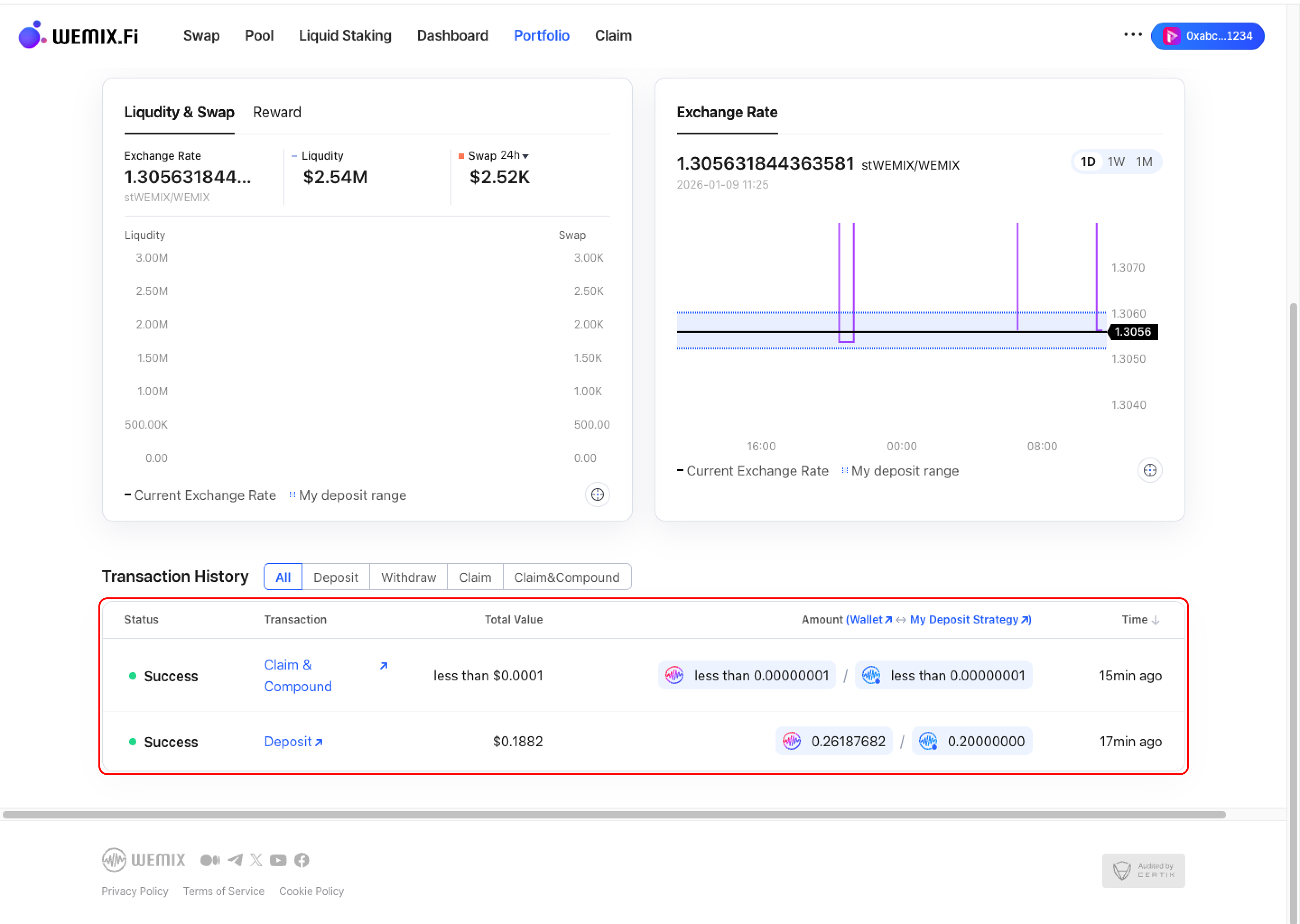
* The page also shows filtered transaction history specific to the selected position, including all deposits, withdrawals, and reward claims.
{% endstep %}
{% step %}
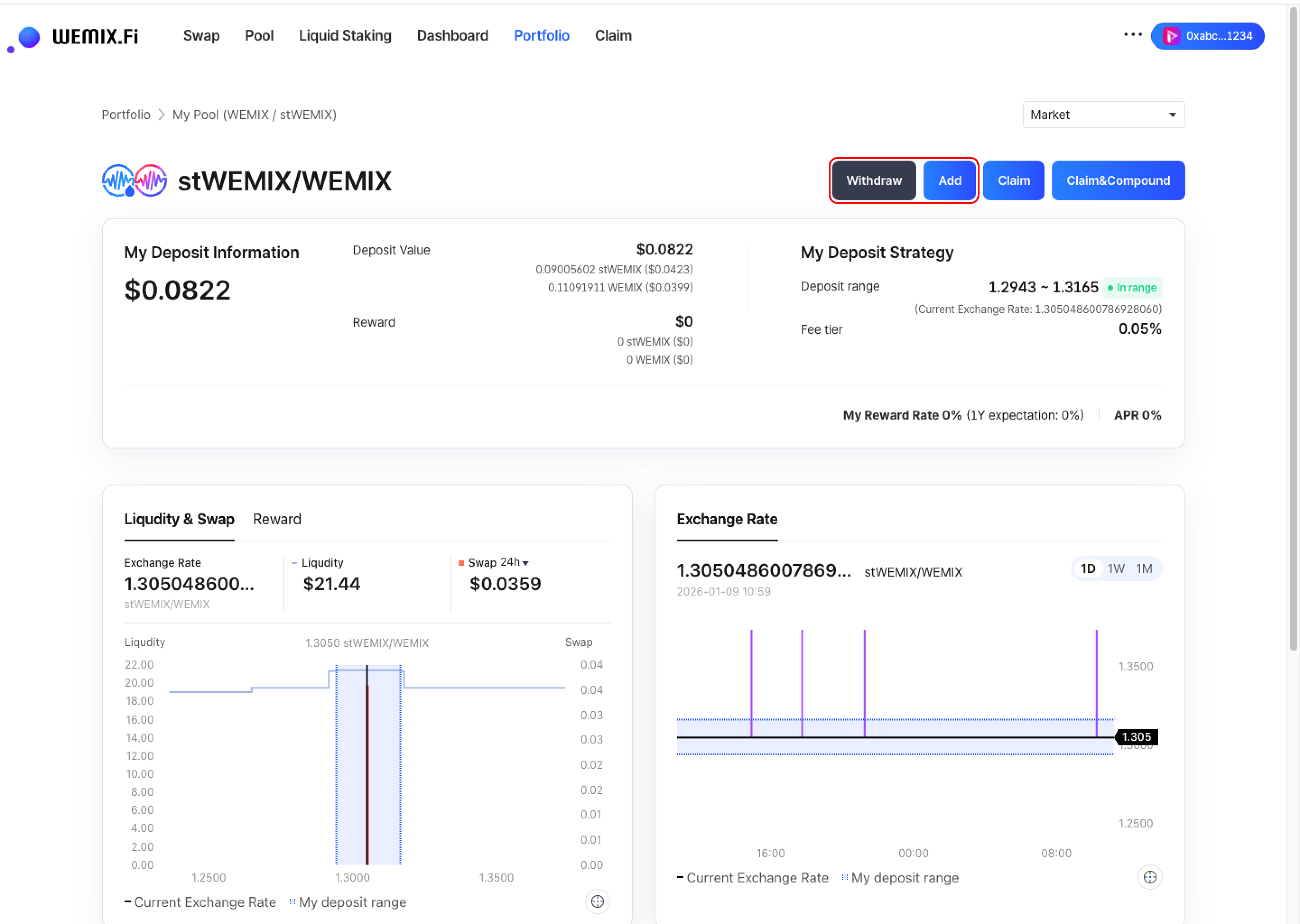
## Adding or Withdrawing Liquidity
* To add more liquidity to an existing position or withdraw from it, use the Add or Withdraw buttons. These actions follow the processes described in the [**Deposit**](/guides/pool/deposit.md) **and** [**Withdraw**](/guides/pool/withdraw.md) **guides.**
{% endstep %}
{% endstepper %}
***
## Claiming Rewards
{% stepper %}
{% step %}
### Claim
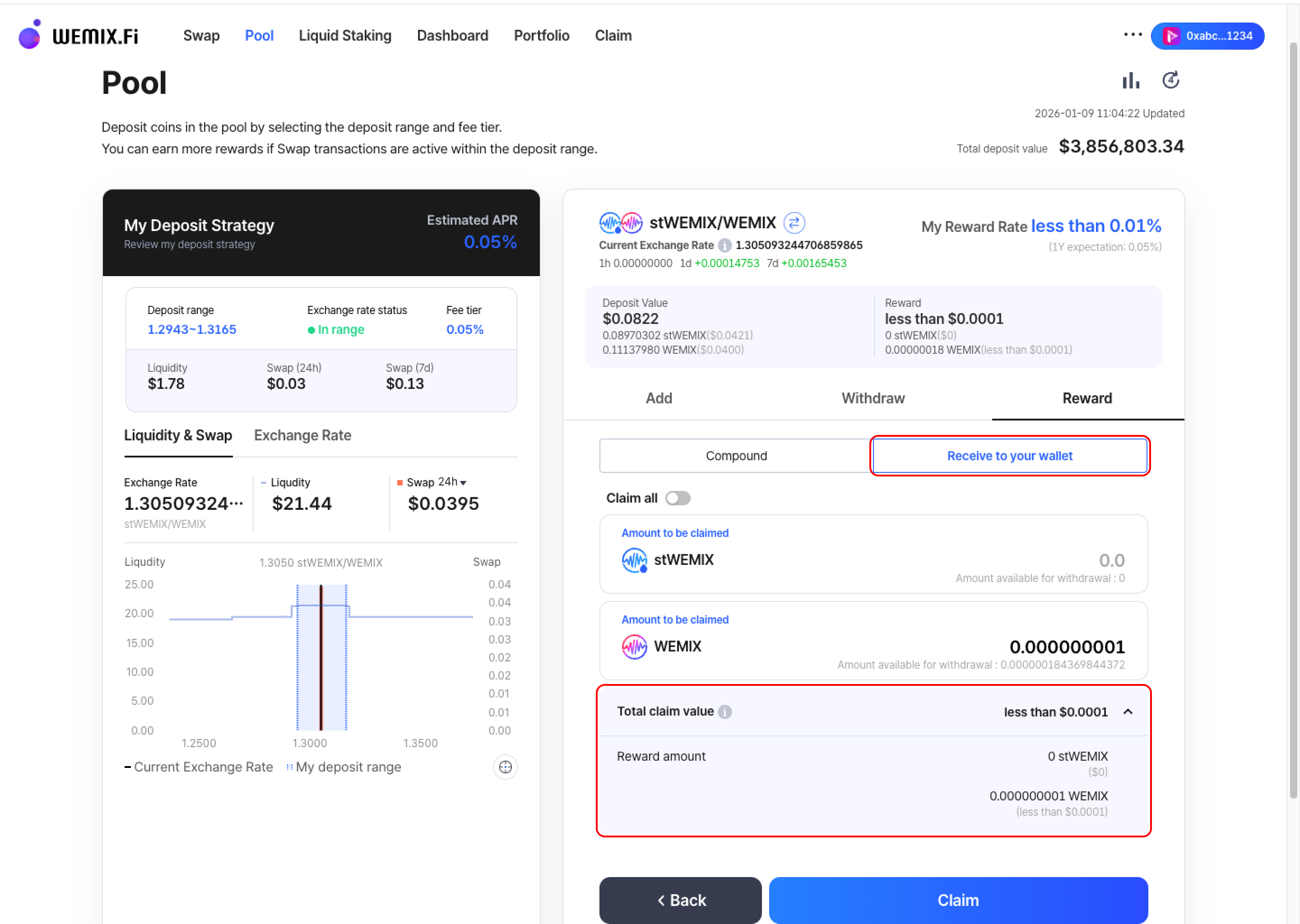
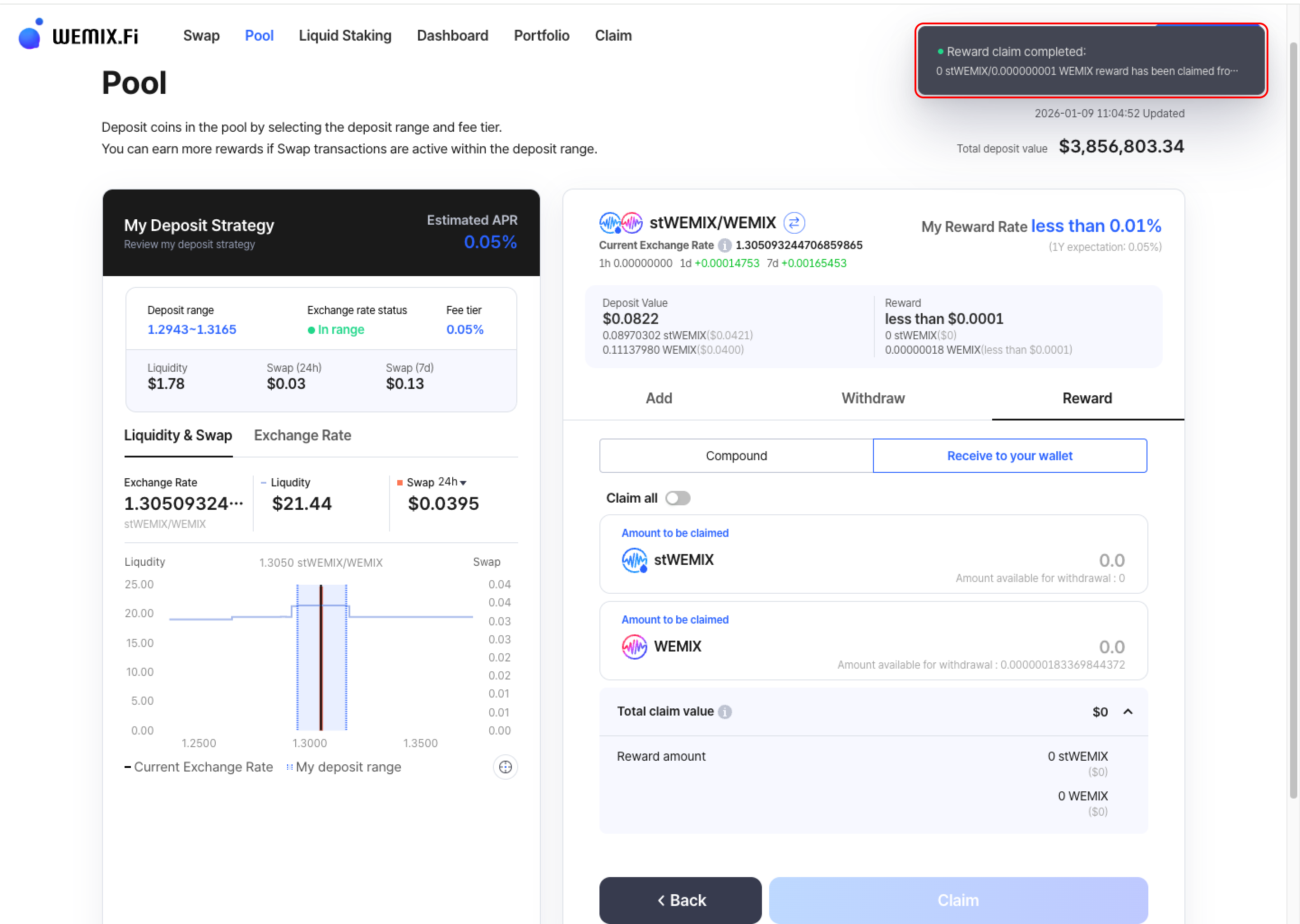
* Select the Claim button to collect accumulated swap fee rewards.
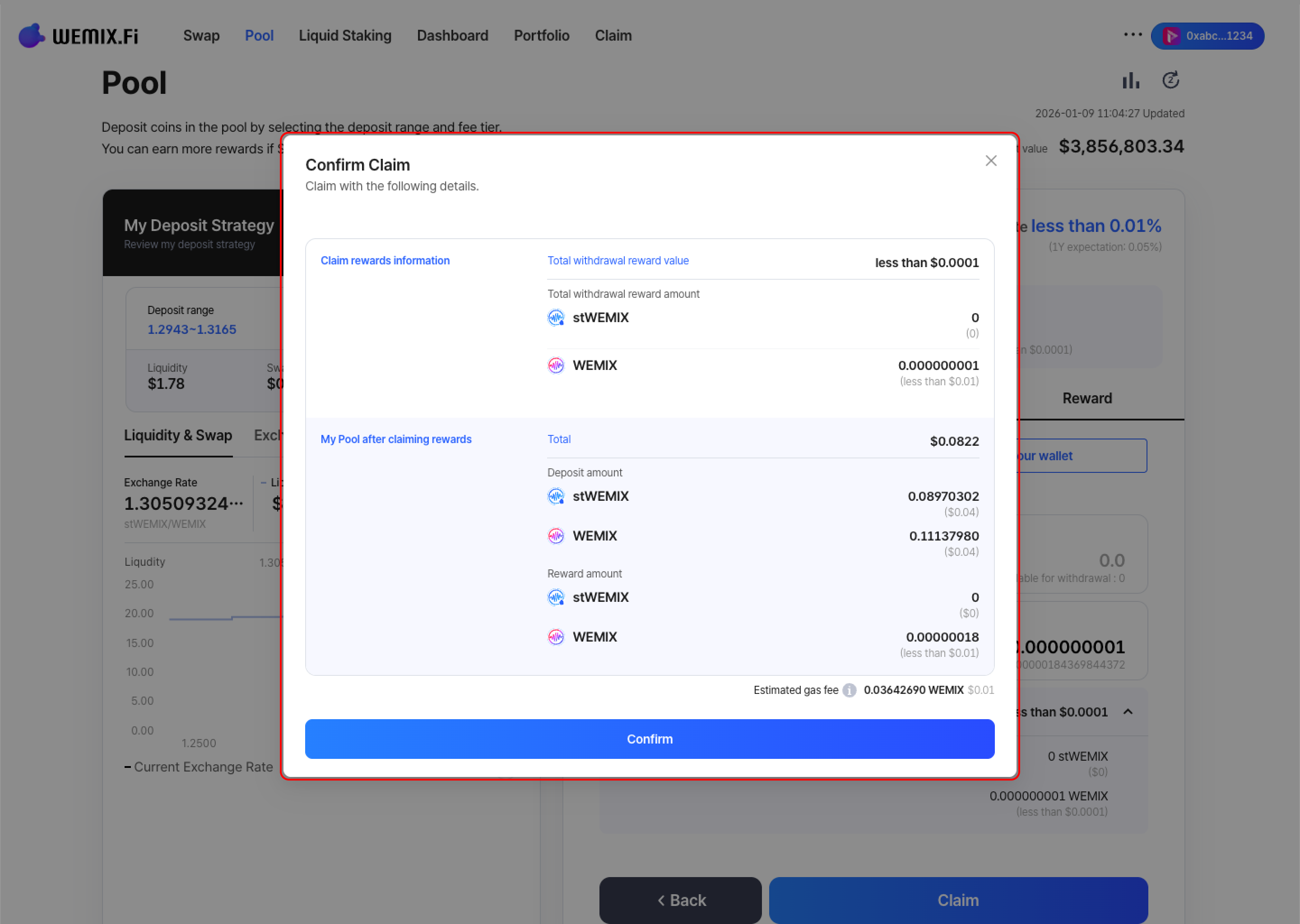
* Review the reward amount and confirm. The wallet requests approval to process the claim.
* After approval, the transaction processes on the blockchain. Claimed rewards are transferred directly to the wallet.
{% endstep %}
{% step %}
### Claim & Compound
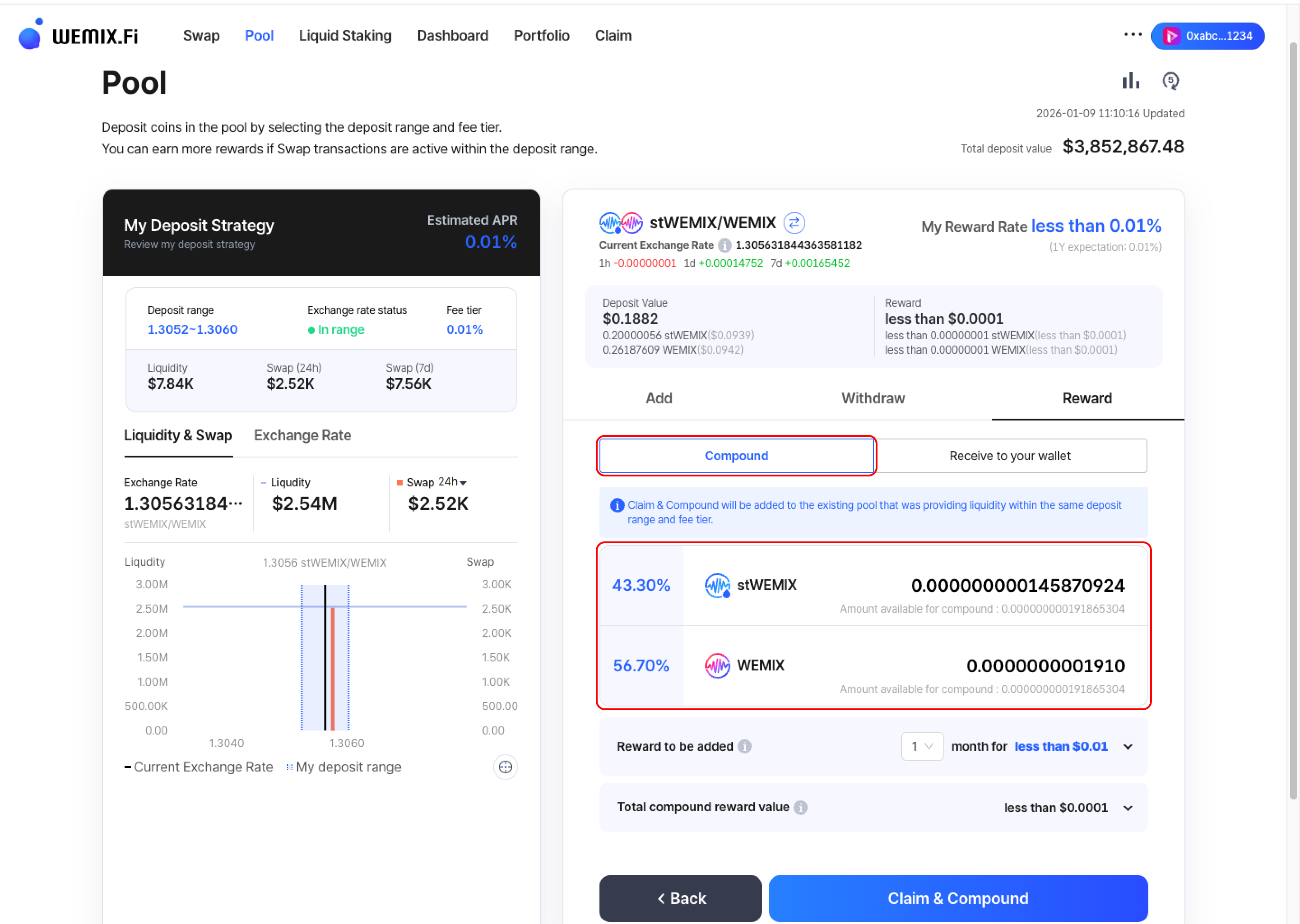
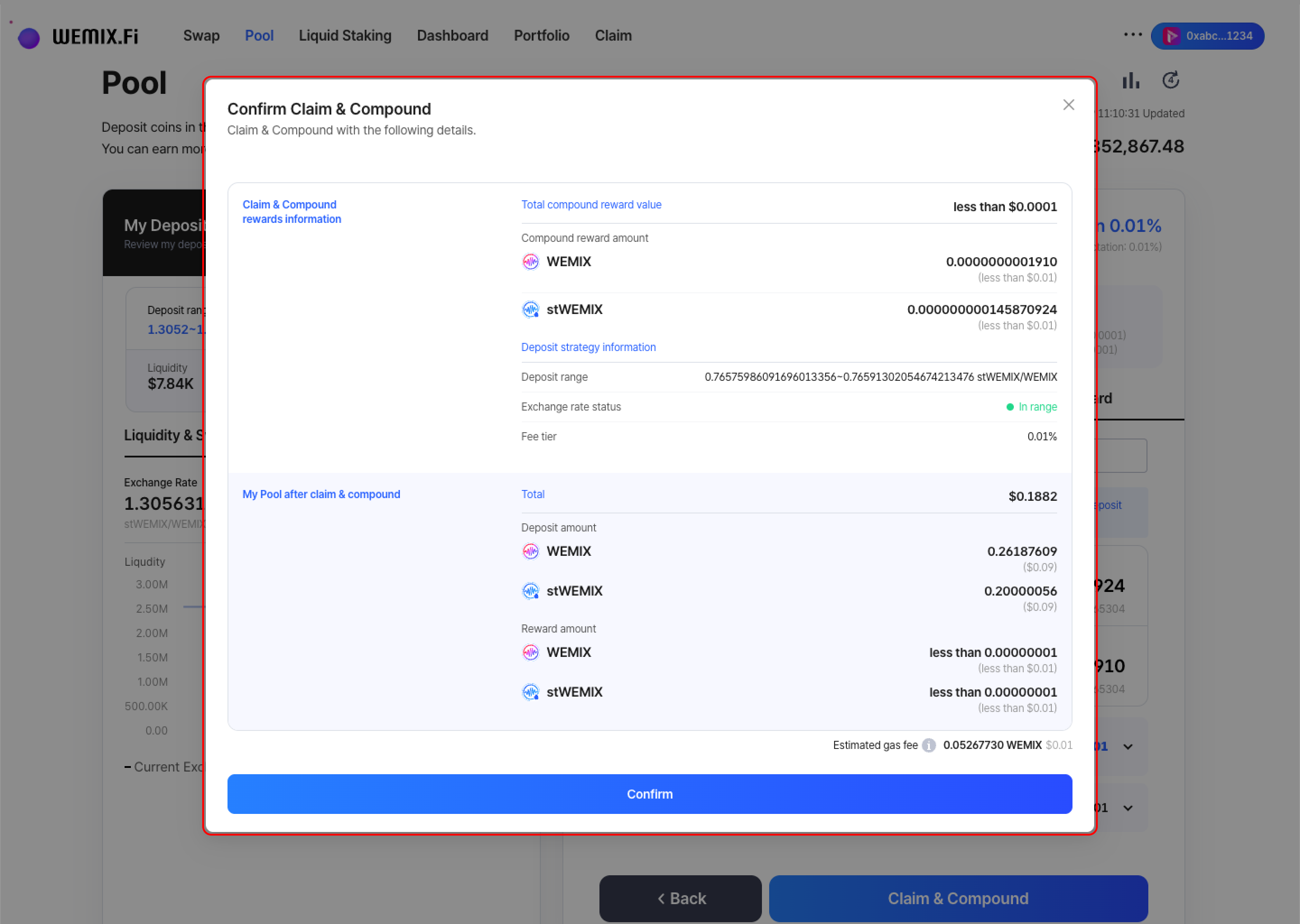
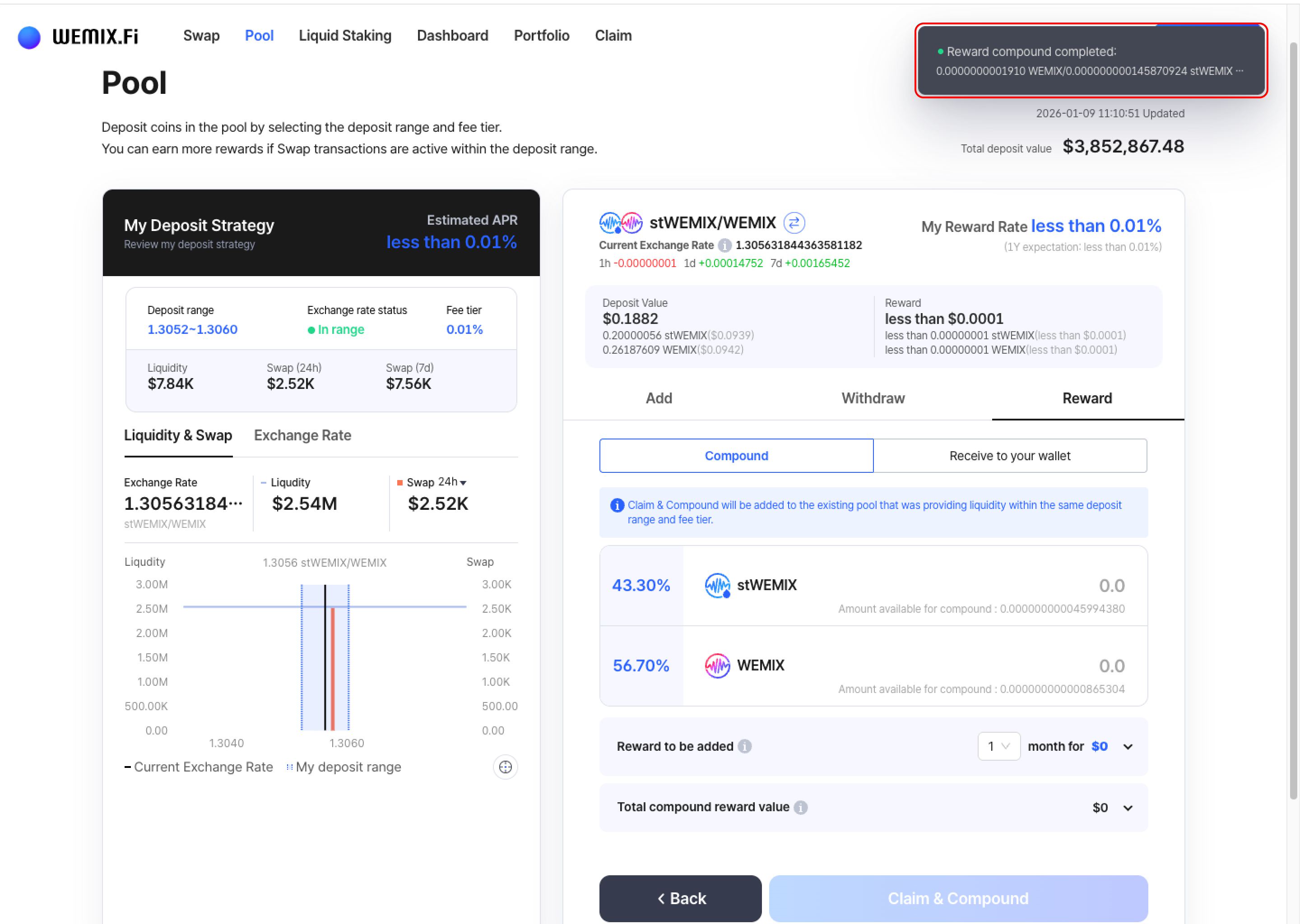
* Select the Claim & Compound button to claim rewards and automatically reinvest them into the same position. This increases the position's liquidity without manual redeposit.
* Review the compound details and confirm. The wallet requests approval to process both the claim and redeposit in a single transaction.
* After approval, the transaction processes on the blockchain, and the position's liquidity increases by the compounded amount.
{% endstep %}
{% endstepper %}
***
## Transaction History
* All position management actions appear in the Dashboard's Transaction History and in the position-specific transaction list.