> For the complete documentation index, see [llms.txt](https://docs.wemix.fi/llms.txt). Markdown versions of documentation pages are available by appending `.md` to page URLs; this page is available as [Markdown](https://docs.wemix.fi/guides/pool/manage-position.md).

# Manage Position

After depositing liquidity, positions can be monitored and managed through WEMIX.Fi's Portfolio and Pool interfaces. This guide covers how to view position details and manage accumulated rewards.

{% hint style="info" %}

#### Prerequisites

Required items for managing positions:

* Web3 wallet (WemixPLAY, MetaMask) set up for WEMIX3.0 network
* Active liquidity position in a pool
* Native WEMIX to pay network transaction fees
  {% endhint %}

***

{% stepper %}
{% step %}

## Accessing Positions

<figure><img src="https://1713088198-files.gitbook.io/~/files/v0/b/gitbook-x-prod.appspot.com/o/spaces%2FEo55jrwSeX46HoVs0pqI%2Fuploads%2FgHwgYYVDAB78qXuW2tUZ%2Fimage.png?alt=media&amp;token=a57b7311-80b3-455e-ab01-e57bd9d64261" alt=""><figcaption></figcaption></figure>

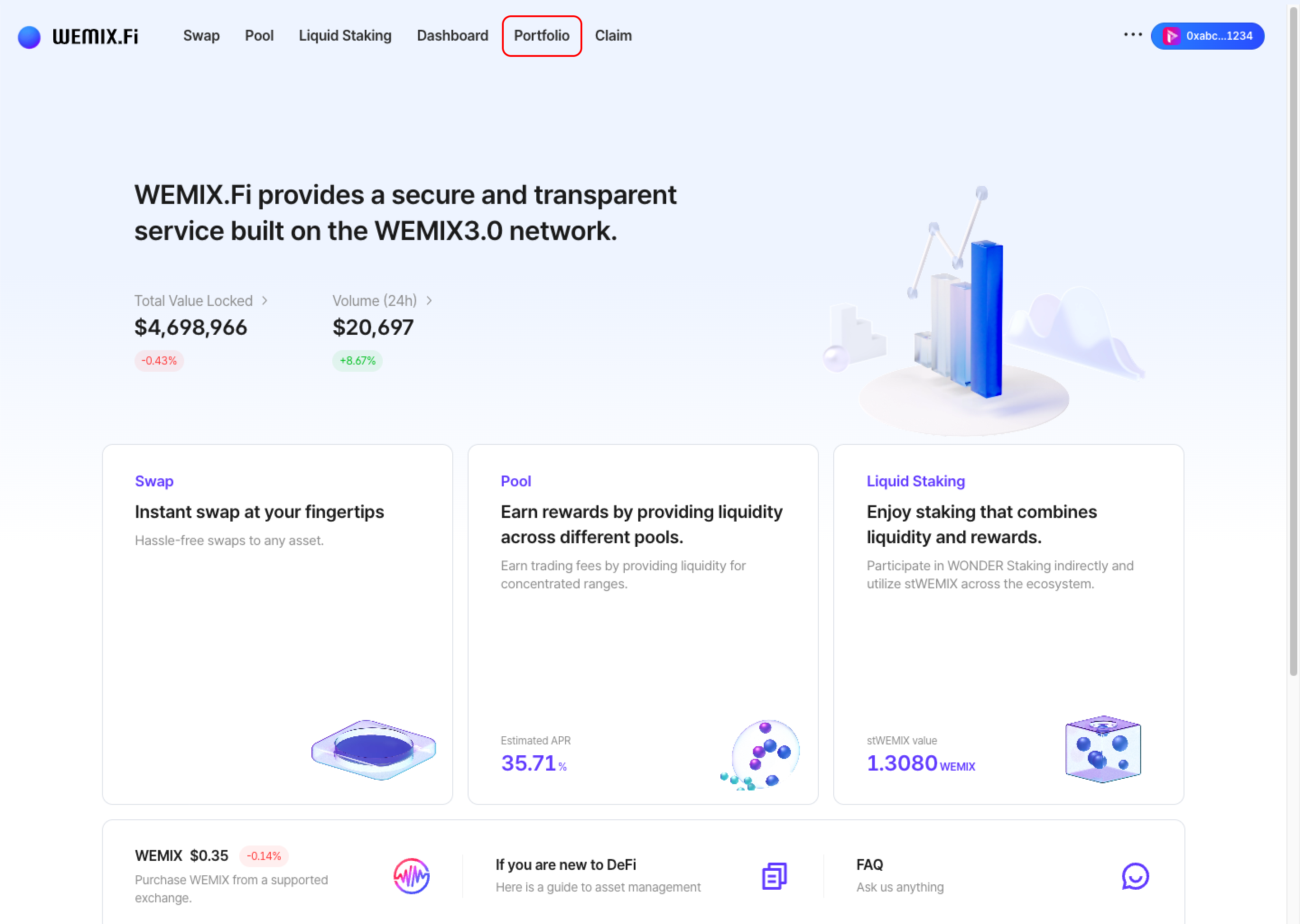
* Connect a wallet to WEMIX.Fi and navigate to the Portfolio page.

<figure><img src="https://1713088198-files.gitbook.io/~/files/v0/b/gitbook-x-prod.appspot.com/o/spaces%2FEo55jrwSeX46HoVs0pqI%2Fuploads%2FdeOy88vKTHqCWrgFWFls%2Fimage.png?alt=media&amp;token=b468f37c-b1ba-4375-8c5e-cb73d2fbab99" alt=""><figcaption></figcaption></figure>

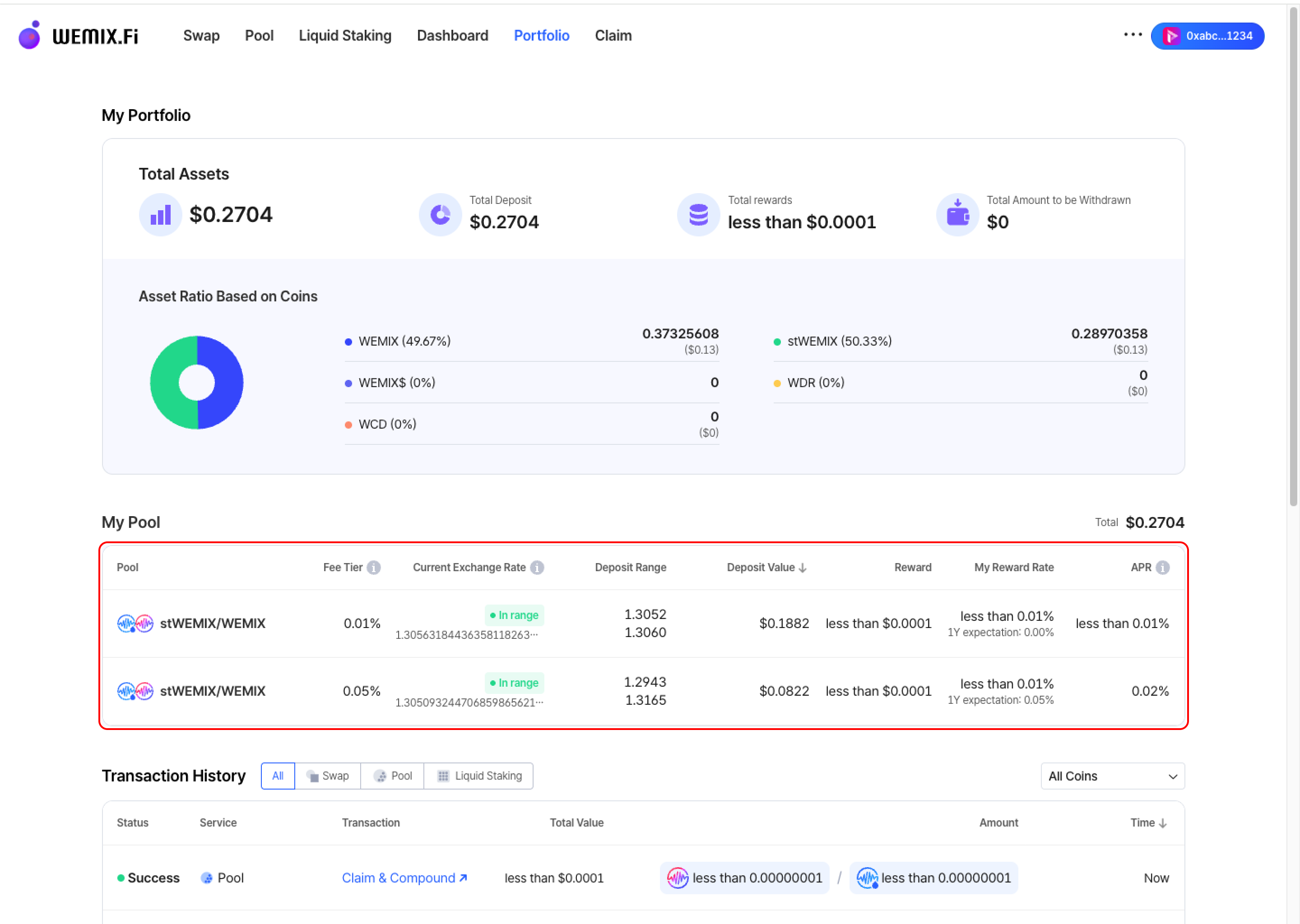
* The My Portfolio overview displays all active positions in the My Pool section. Select a position to view detailed information and management options.

<figure><img src="https://1713088198-files.gitbook.io/~/files/v0/b/gitbook-x-prod.appspot.com/o/spaces%2FEo55jrwSeX46HoVs0pqI%2Fuploads%2FcX7rjAp1qkiBKkyj53I5%2Fimage.png?alt=media&amp;token=090bf79c-0486-4370-a414-237a88e37244" alt=""><figcaption></figcaption></figure>

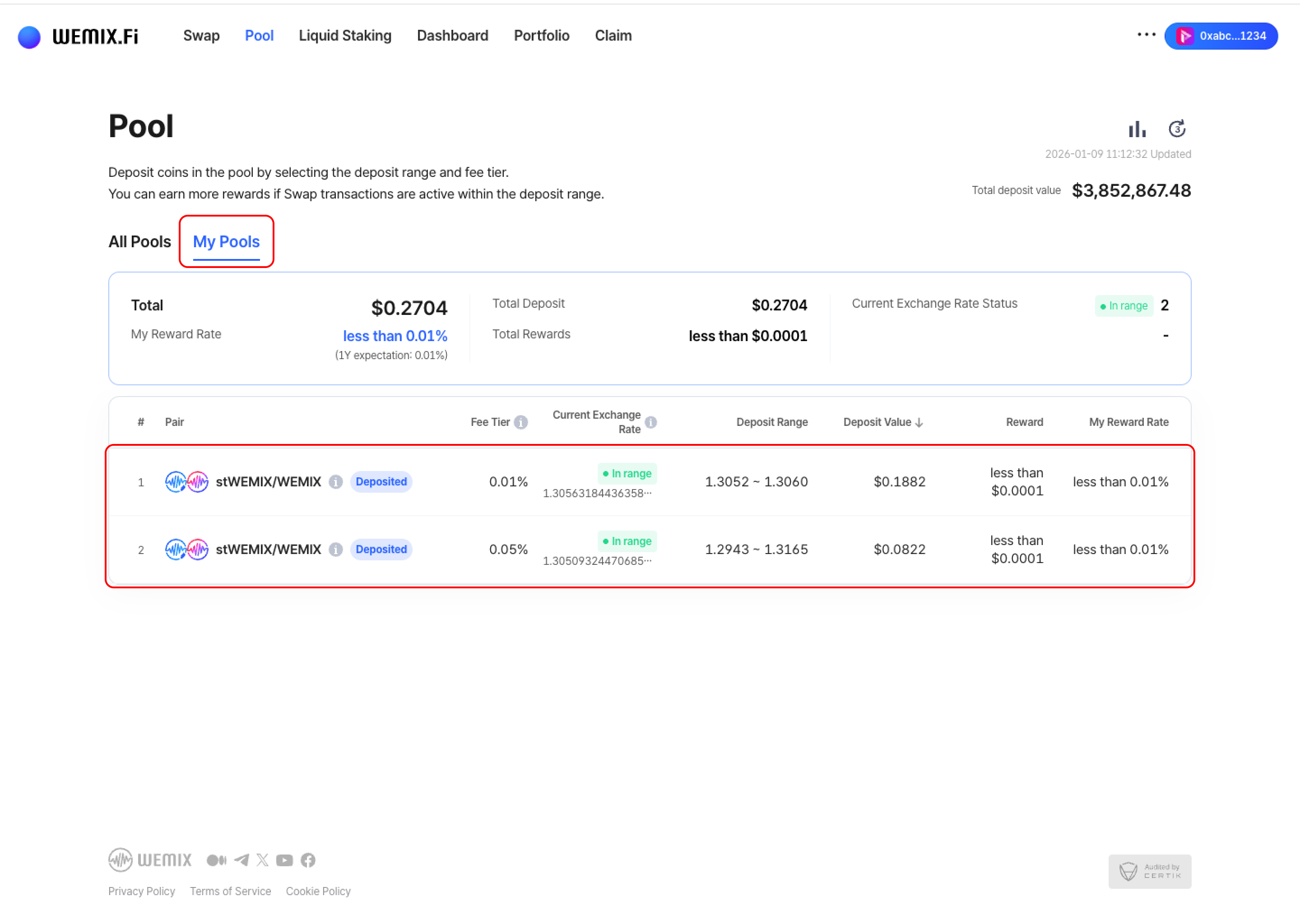
* Positions can also be accessed directly through the Pool page's 'My Pools' list.
  {% endstep %}

{% step %}

## Viewing Position Details

<figure><img src="https://1713088198-files.gitbook.io/~/files/v0/b/gitbook-x-prod.appspot.com/o/spaces%2FEo55jrwSeX46HoVs0pqI%2Fuploads%2FzVaO5FQCFu7A4KgXlWfQ%2Fimage.png?alt=media&amp;token=9fe1eb06-7f12-4336-85c1-f29632899714" alt=""><figcaption></figcaption></figure>

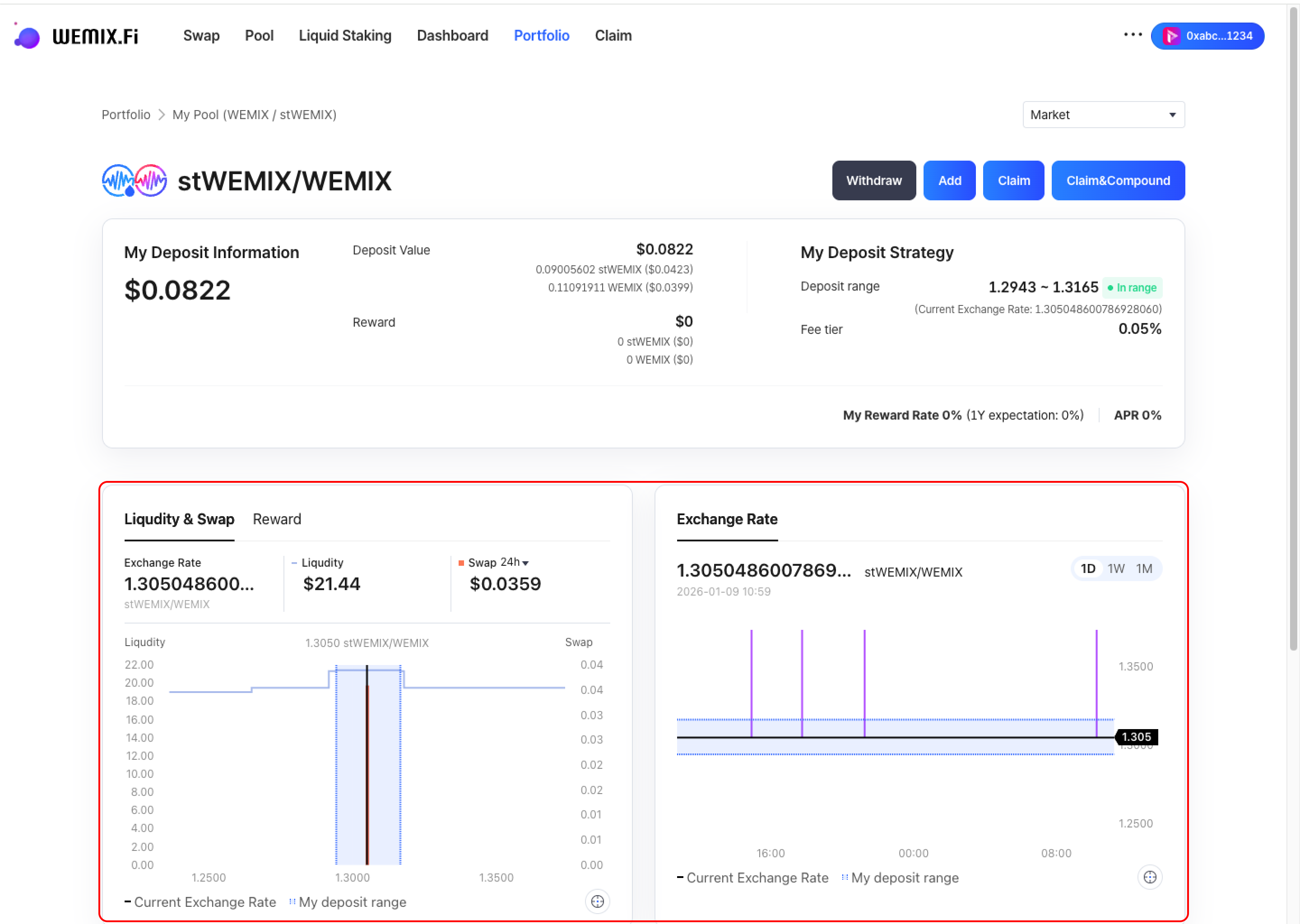
* The position detail page displays comprehensive information:
  * **Exchange Rate**: Current price ratio of the token pair
  * **Liquidity Depth**: Total liquidity in the selected range
  * **Swap Volume**: Trading activity within the position's range
  * **Reward**: Accumulated fees earned from swaps
  * **Exchange Rate Change**: Price movement over 1 day, 1 week, and 1 month periods

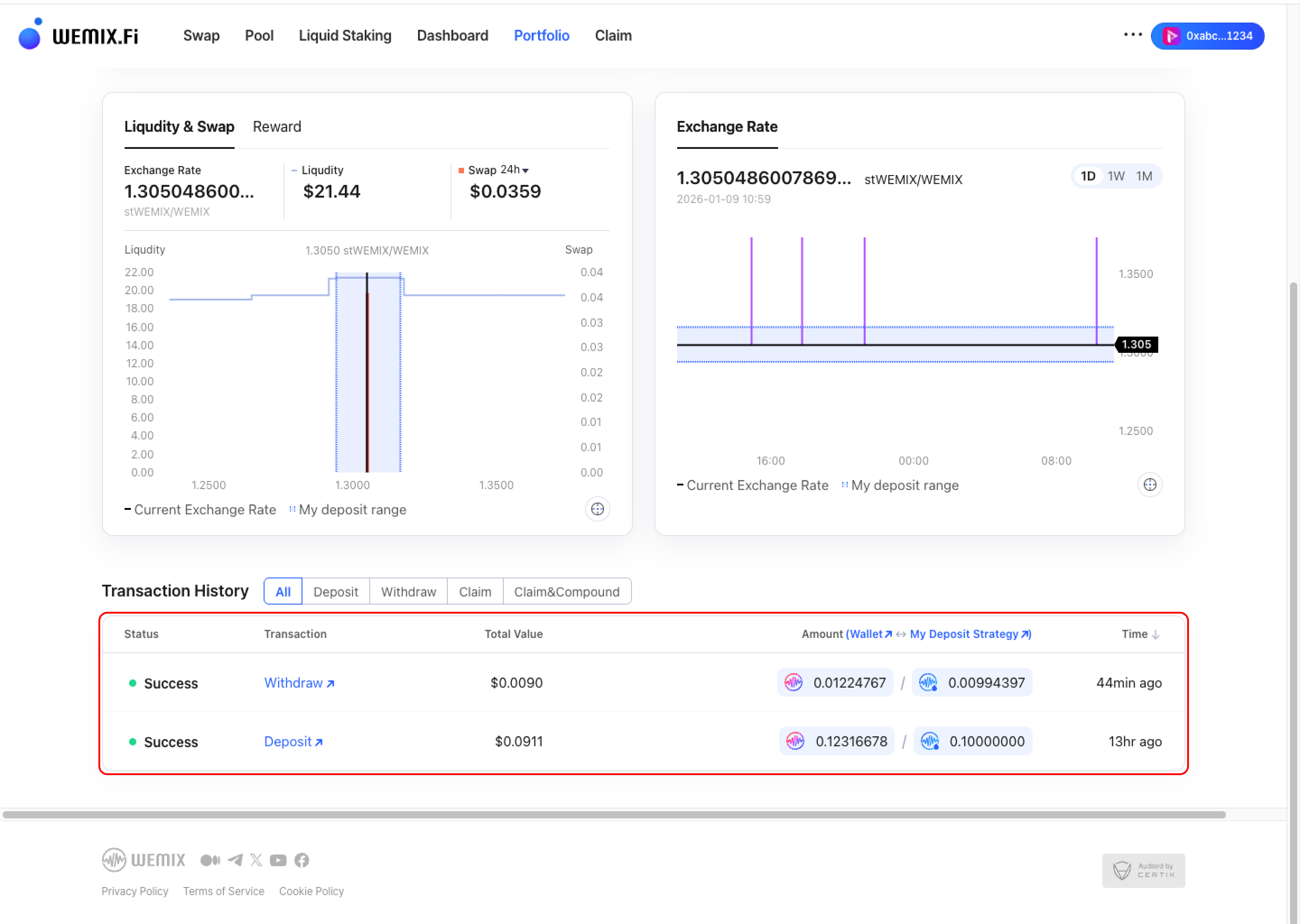
<figure><img src="https://1713088198-files.gitbook.io/~/files/v0/b/gitbook-x-prod.appspot.com/o/spaces%2FEo55jrwSeX46HoVs0pqI%2Fuploads%2FLaumRZ5nSRSCaY2Y40GW%2Fimage.png?alt=media&amp;token=e7355334-1e68-4cb0-a688-cebf64913fc6" alt=""><figcaption></figcaption></figure>

* The page also shows filtered transaction history specific to the selected position, including all deposits, withdrawals, and reward claims.
  {% endstep %}

{% step %}

## Adding or Withdrawing Liquidity

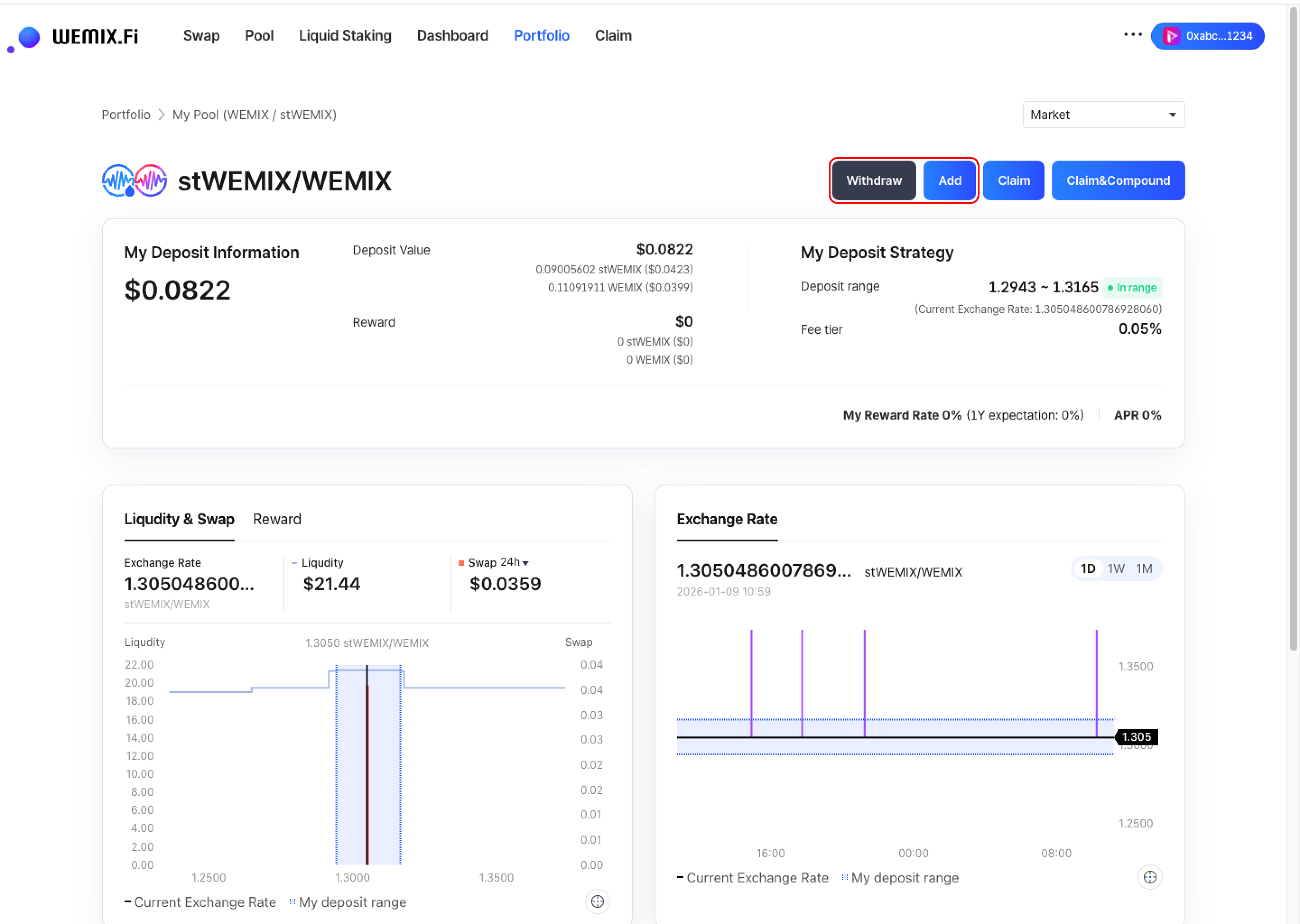
<figure><img src="https://1713088198-files.gitbook.io/~/files/v0/b/gitbook-x-prod.appspot.com/o/spaces%2FEo55jrwSeX46HoVs0pqI%2Fuploads%2FlUcbEH0Emh7JAzeo3MdK%2Fimage.png?alt=media&amp;token=0529cc72-712d-43a5-825d-9353766e2a5f" alt=""><figcaption></figcaption></figure>

* To add more liquidity to an existing position or withdraw from it, use the Add or Withdraw buttons. These actions follow the processes described in the [**Deposit**](/guides/pool/deposit.md) **and** [**Withdraw**](/guides/pool/withdraw.md) **guides.**
  {% endstep %}
  {% endstepper %}

***

## Claiming Rewards

{% stepper %}
{% step %}

### Claim

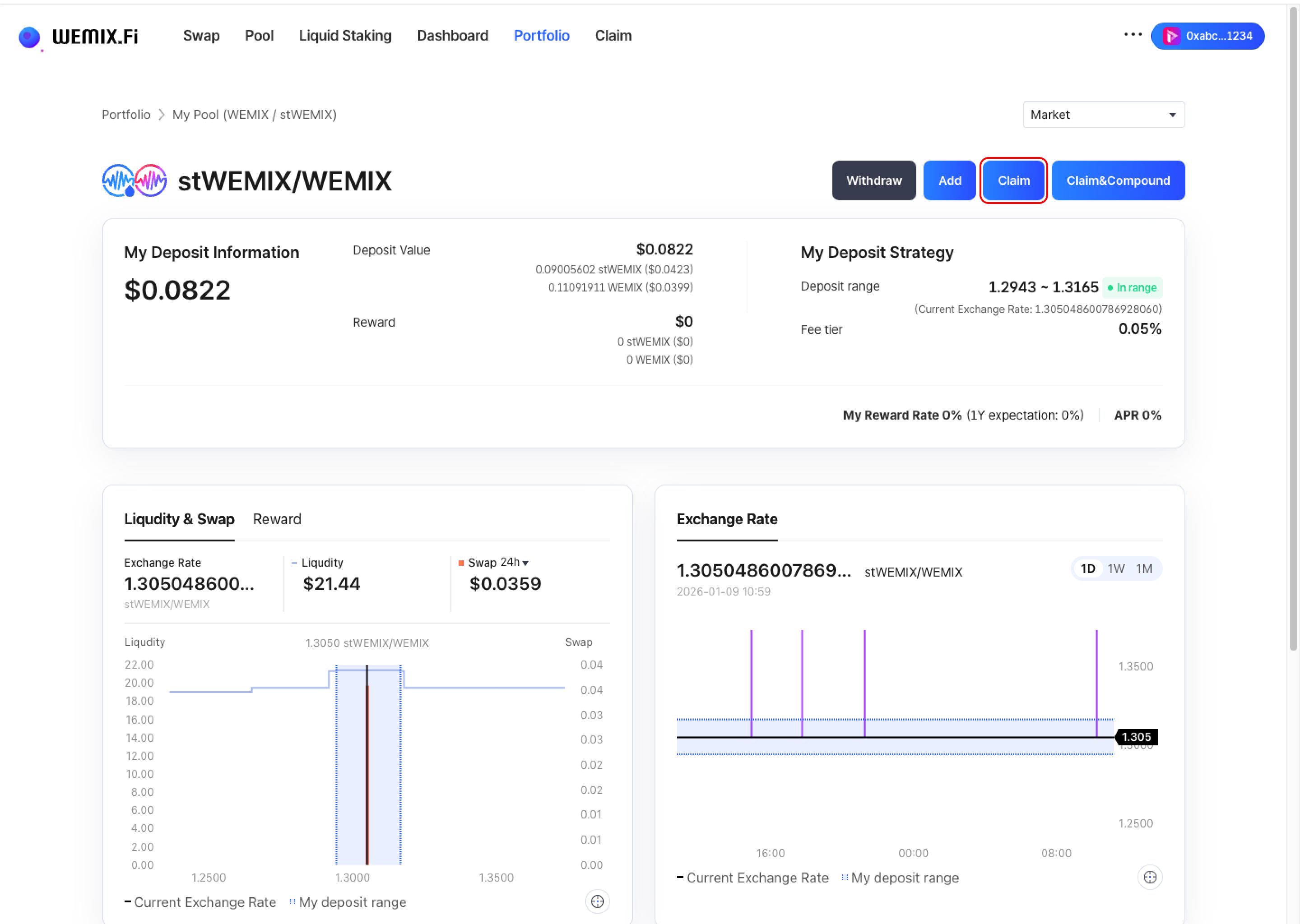
<figure><img src="https://1713088198-files.gitbook.io/~/files/v0/b/gitbook-x-prod.appspot.com/o/spaces%2FEo55jrwSeX46HoVs0pqI%2Fuploads%2FSkhKABIWjTAKXxZbj5jB%2Fimage.png?alt=media&amp;token=30484cbe-712e-45b6-a0bf-a1e56d0bea73" alt=""><figcaption></figcaption></figure>

* Select the Claim button to collect accumulated swap fee rewards.

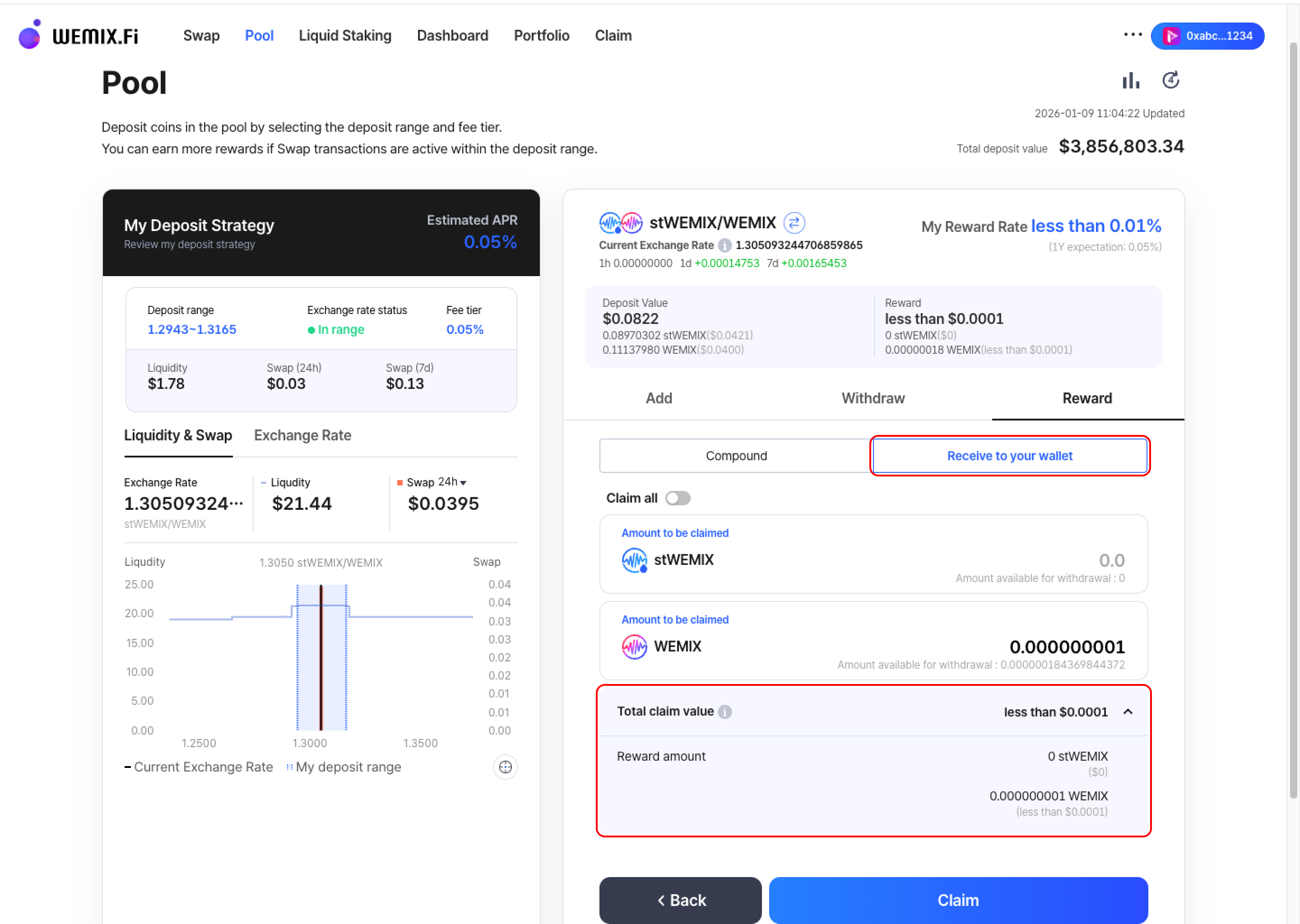
<figure><img src="https://1713088198-files.gitbook.io/~/files/v0/b/gitbook-x-prod.appspot.com/o/spaces%2FEo55jrwSeX46HoVs0pqI%2Fuploads%2Fj0pZ8zt1PMqm7uYuyZhO%2Fimage.png?alt=media&amp;token=09db52aa-af75-4a87-b9fc-418fee9b8ddb" alt=""><figcaption></figcaption></figure>

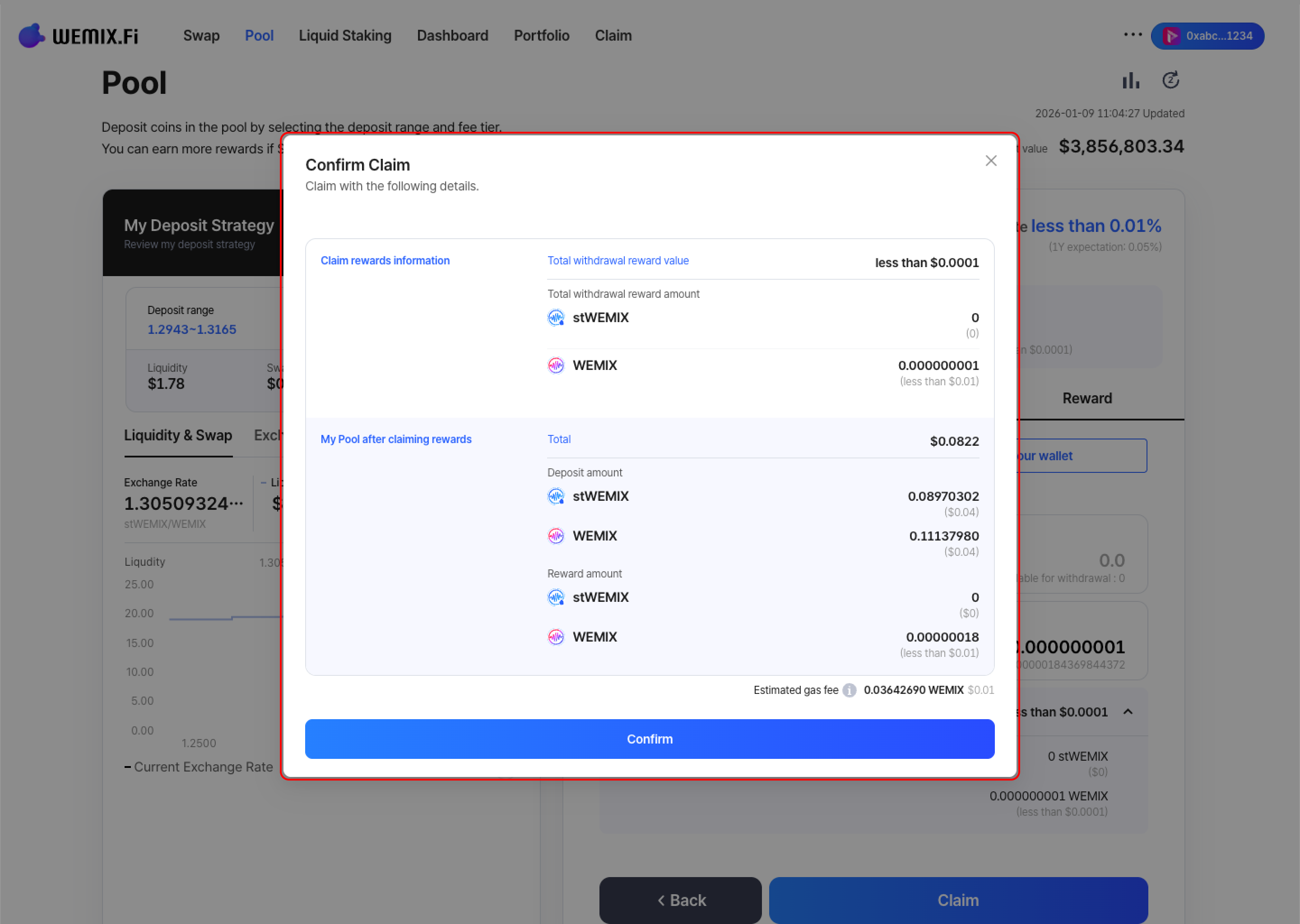
* Review the reward amount and confirm. The wallet requests approval to process the claim.

<figure><img src="https://1713088198-files.gitbook.io/~/files/v0/b/gitbook-x-prod.appspot.com/o/spaces%2FEo55jrwSeX46HoVs0pqI%2Fuploads%2FpvsGDIJPbfiIjnslP0zN%2Fimage.png?alt=media&amp;token=0cc85fc2-f1c7-46bc-8ff2-8c884a2736a7" alt=""><figcaption></figcaption></figure>

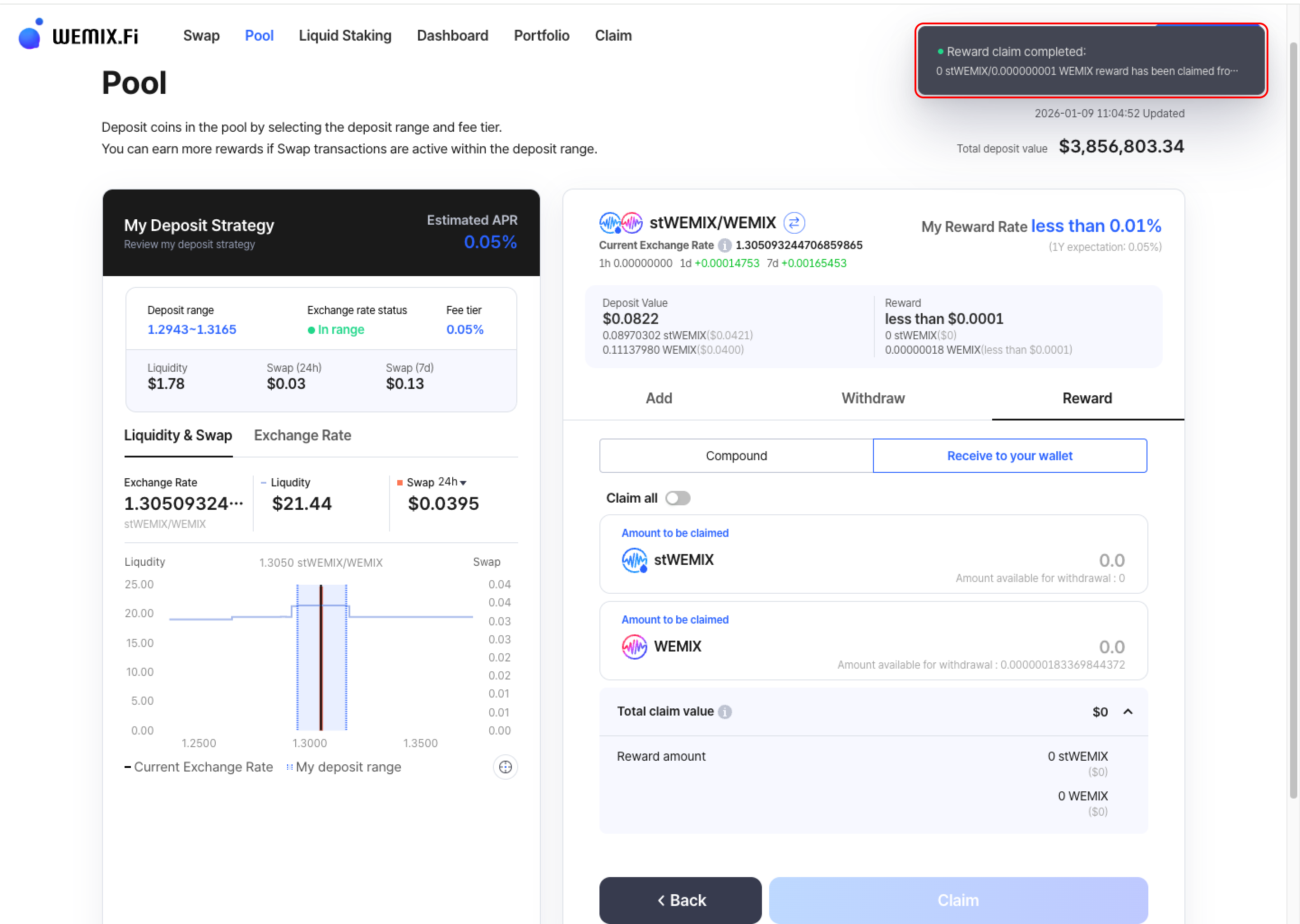
* After approval, the transaction processes on the blockchain. Claimed rewards are transferred directly to the wallet.

<figure><img src="https://1713088198-files.gitbook.io/~/files/v0/b/gitbook-x-prod.appspot.com/o/spaces%2FEo55jrwSeX46HoVs0pqI%2Fuploads%2FdS1ueYs1dVSAi3z10jfp%2Fimage.png?alt=media&amp;token=a79f6023-f5a0-4f3d-bc26-14d71708437f" alt=""><figcaption></figcaption></figure>
{% endstep %}

{% step %}

### Claim & Compound

<figure><img src="https://1713088198-files.gitbook.io/~/files/v0/b/gitbook-x-prod.appspot.com/o/spaces%2FEo55jrwSeX46HoVs0pqI%2Fuploads%2Fh7xPF3lgTlVmRlItCQM1%2Fimage.png?alt=media&amp;token=c0fcd23e-577b-461c-9524-c18effef4b11" alt=""><figcaption></figcaption></figure>

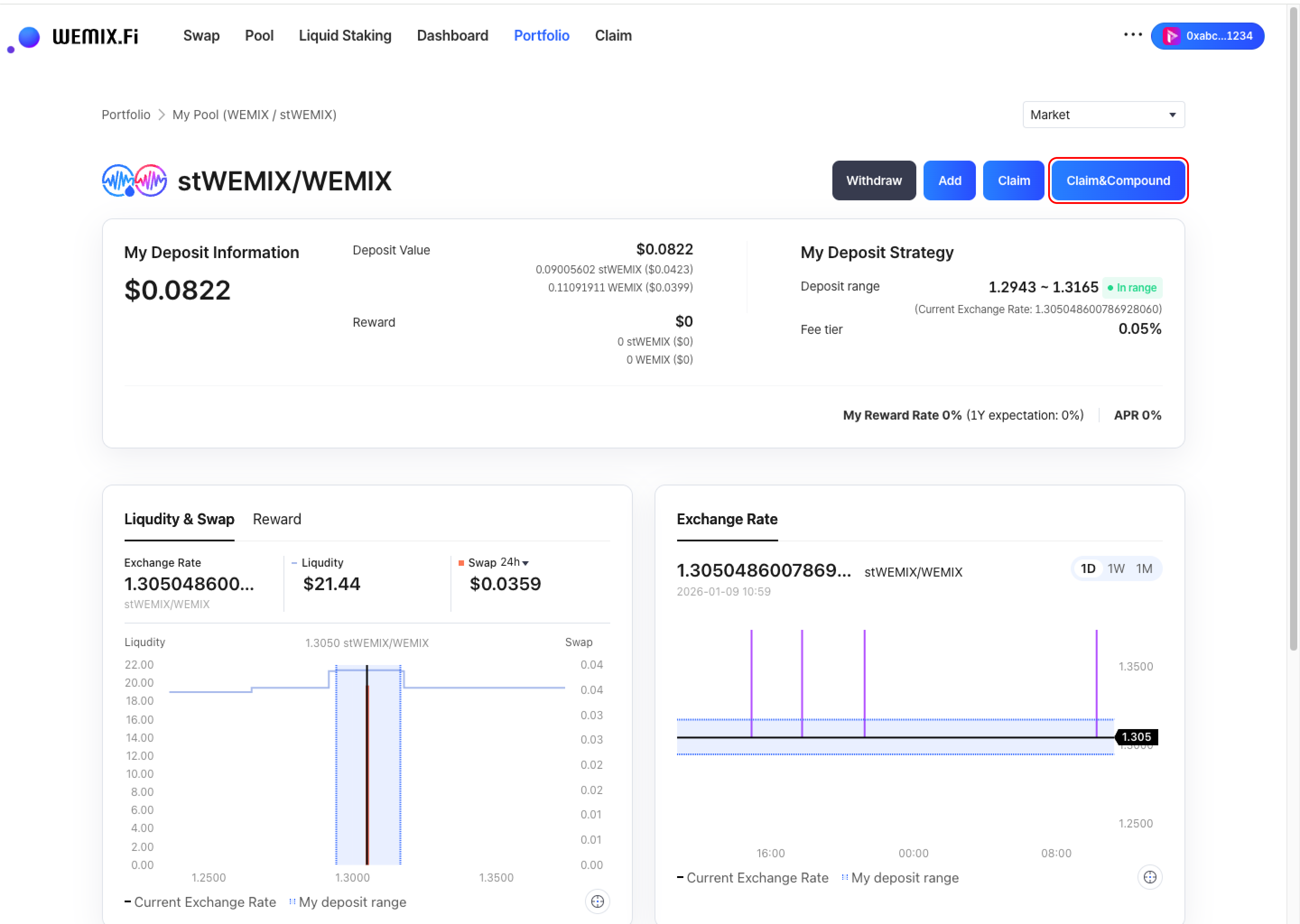
* Select the Claim & Compound button to claim rewards and automatically reinvest them into the same position. This increases the position's liquidity without manual redeposit.

<figure><img src="https://1713088198-files.gitbook.io/~/files/v0/b/gitbook-x-prod.appspot.com/o/spaces%2FEo55jrwSeX46HoVs0pqI%2Fuploads%2FbSmu8p9n3SQIQoj5nlqz%2Fimage.png?alt=media&amp;token=fbc8e698-8330-4d09-a97a-896ec5e253d9" alt=""><figcaption></figcaption></figure>

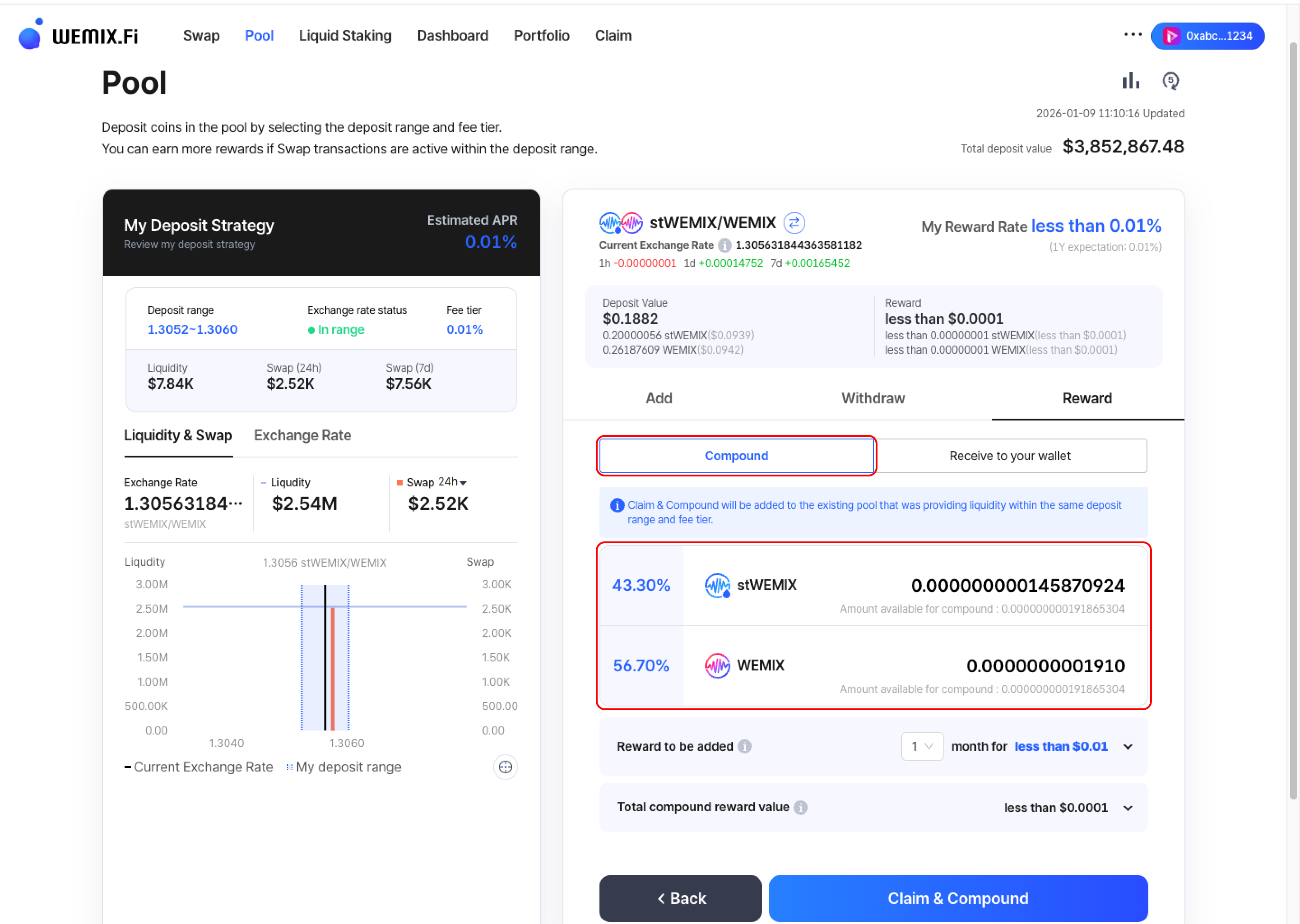
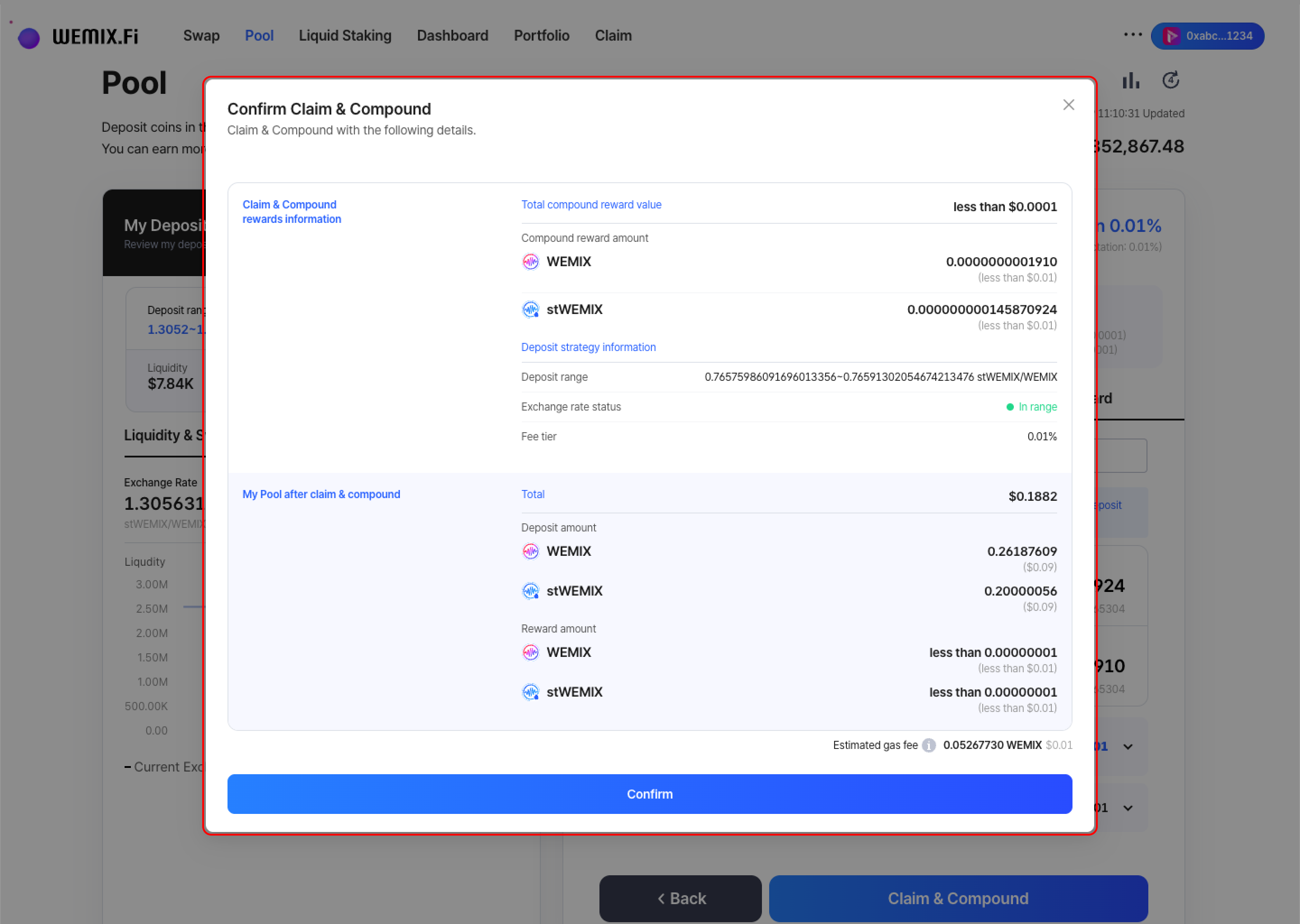
* Review the compound details and confirm. The wallet requests approval to process both the claim and redeposit in a single transaction.

<figure><img src="https://1713088198-files.gitbook.io/~/files/v0/b/gitbook-x-prod.appspot.com/o/spaces%2FEo55jrwSeX46HoVs0pqI%2Fuploads%2Fy5TmIWeyai5m8DH7Es3k%2Fimage.png?alt=media&amp;token=a6c5dd91-8512-4cd1-852d-43b95b5f98d4" alt=""><figcaption></figcaption></figure>

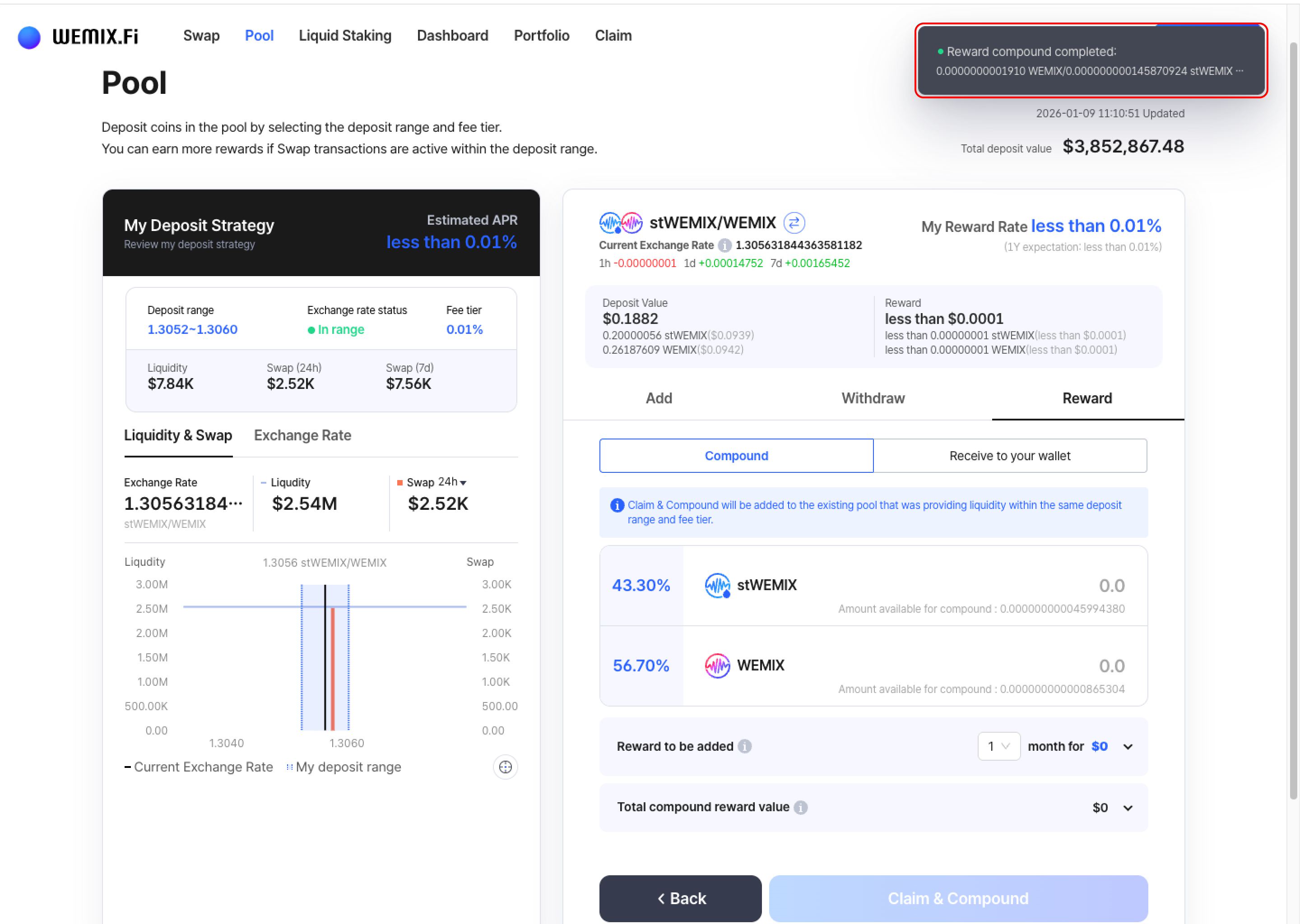
* After approval, the transaction processes on the blockchain, and the position's liquidity increases by the compounded amount.

<figure><img src="https://1713088198-files.gitbook.io/~/files/v0/b/gitbook-x-prod.appspot.com/o/spaces%2FEo55jrwSeX46HoVs0pqI%2Fuploads%2FqCtuy5g1LRzhviQHHmJy%2Fimage.png?alt=media&amp;token=2a0938e3-e309-47d8-bc16-6525b10674dd" alt=""><figcaption></figcaption></figure>
{% endstep %}
{% endstepper %}

***

## Transaction History

<figure><img src="https://1713088198-files.gitbook.io/~/files/v0/b/gitbook-x-prod.appspot.com/o/spaces%2FEo55jrwSeX46HoVs0pqI%2Fuploads%2FCWKK3N1BJY7PuvUcGdnb%2Fimage.png?alt=media&amp;token=8ef06748-455a-4b86-8fa1-72f895a89a63" alt=""><figcaption></figcaption></figure>

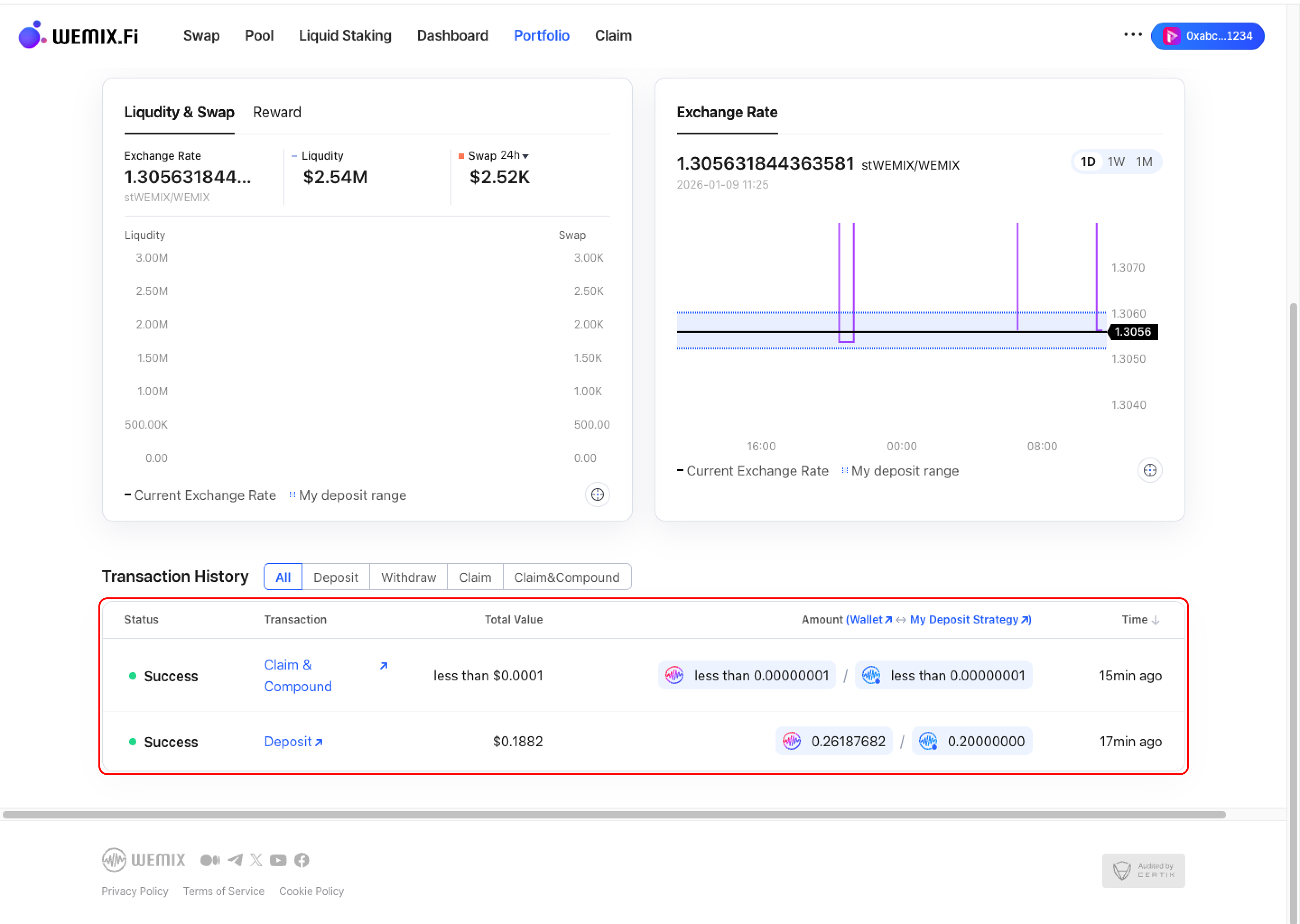
* All position management actions appear in the Dashboard's Transaction History and in the position-specific transaction list.